Unreal Engine SDK reference
The Unreal Engine SDK is experimental. Its public API may change or be removed in any minor release until the SDK is promoted to stable.
The Aghanim Unreal Engine SDK that allows you to use the Checkout within your Unreal Engine game. It is a single plugin with a Blueprint- and C++-callable API that wraps Aghanim's native checkout on Android and iOS and talks to the Aghanim REST API directly on desktop.
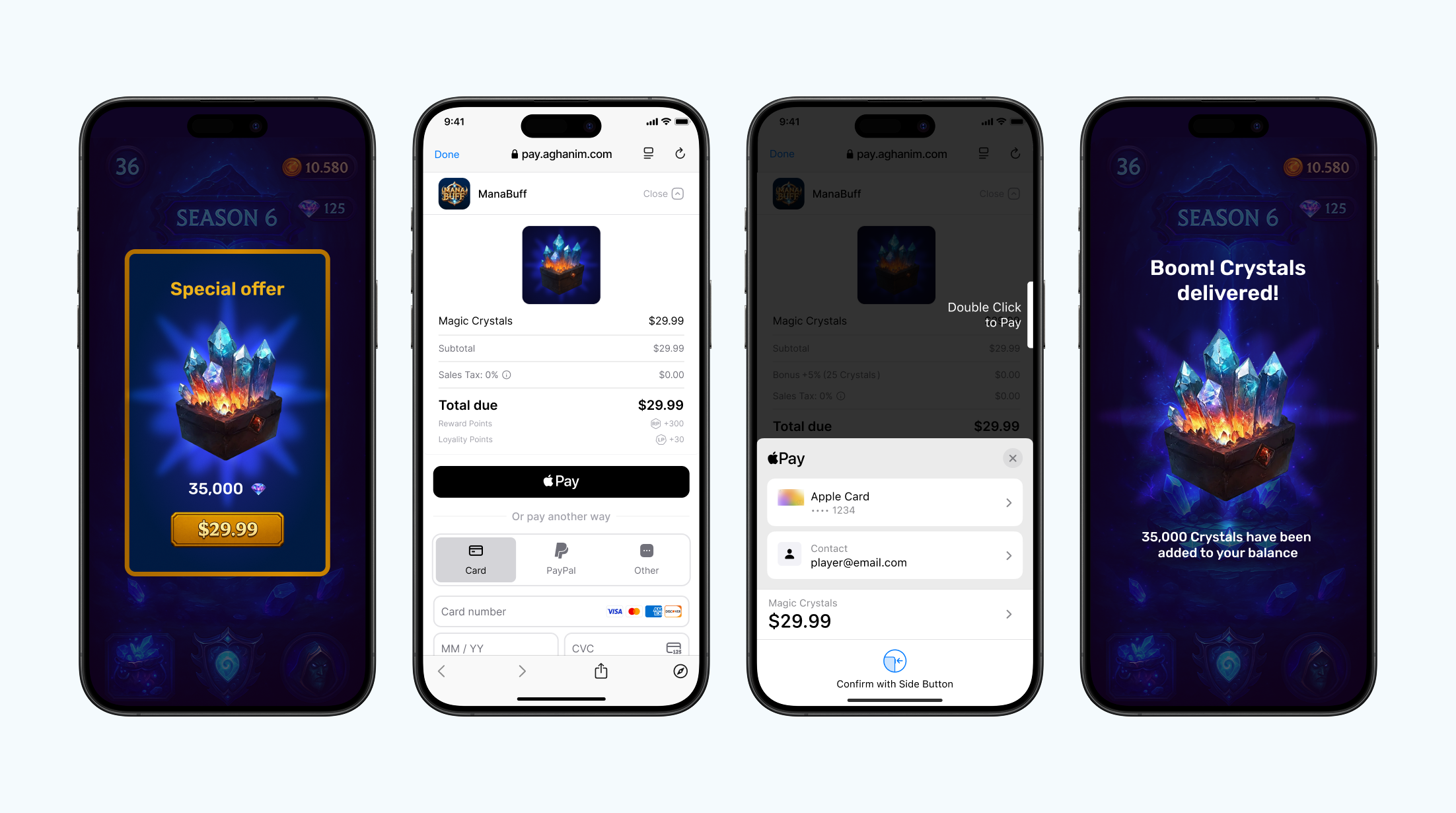
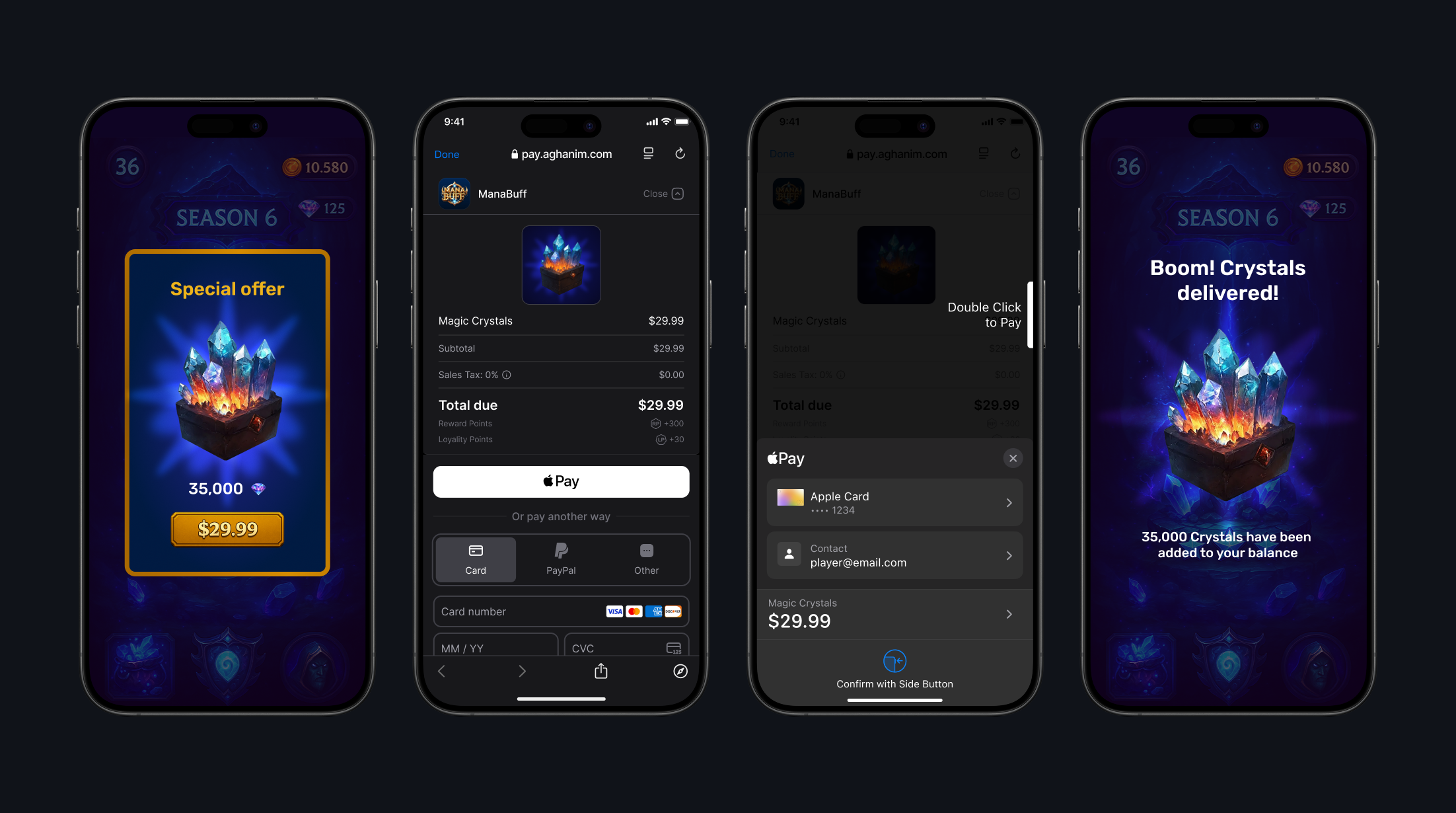
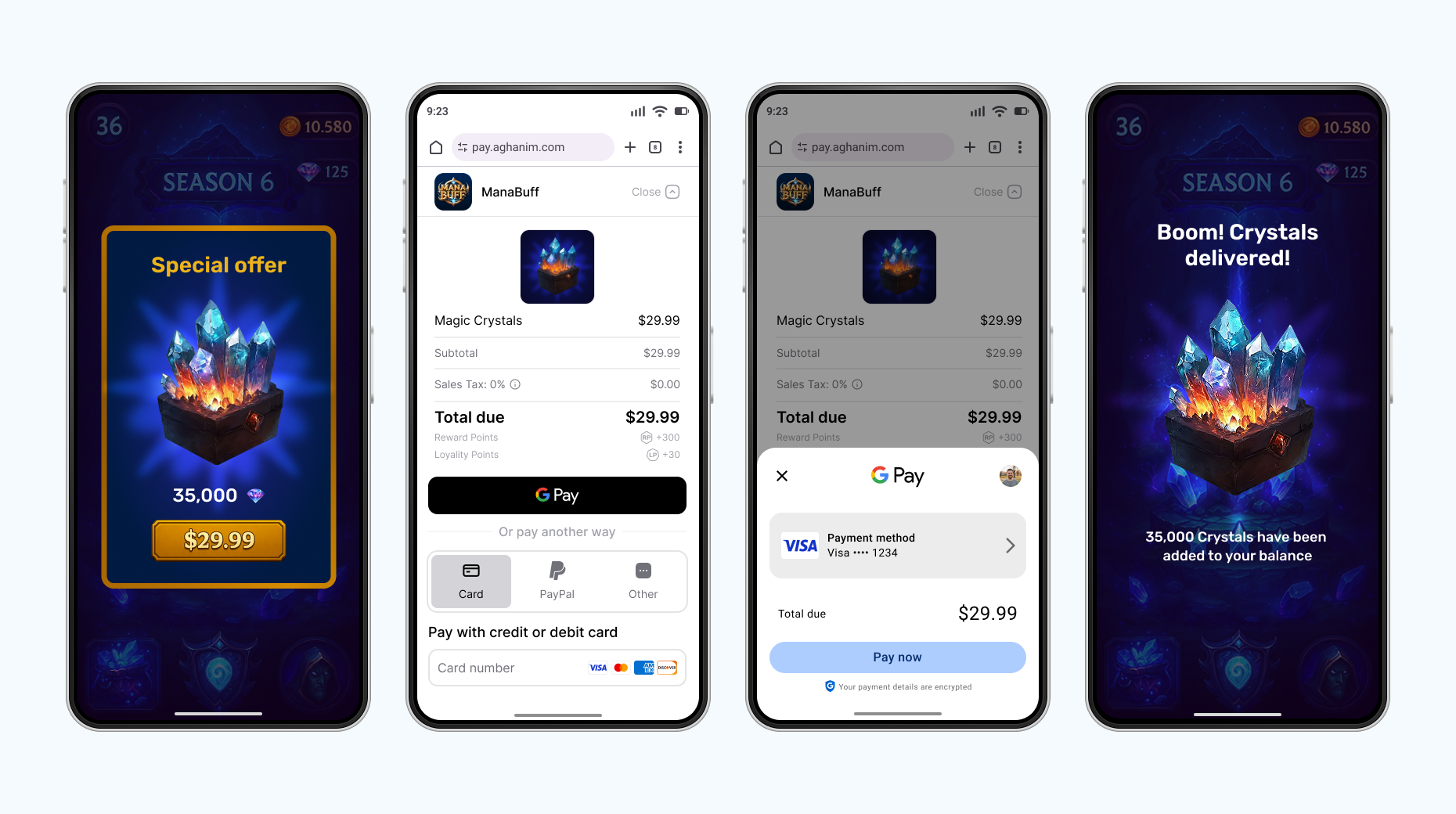
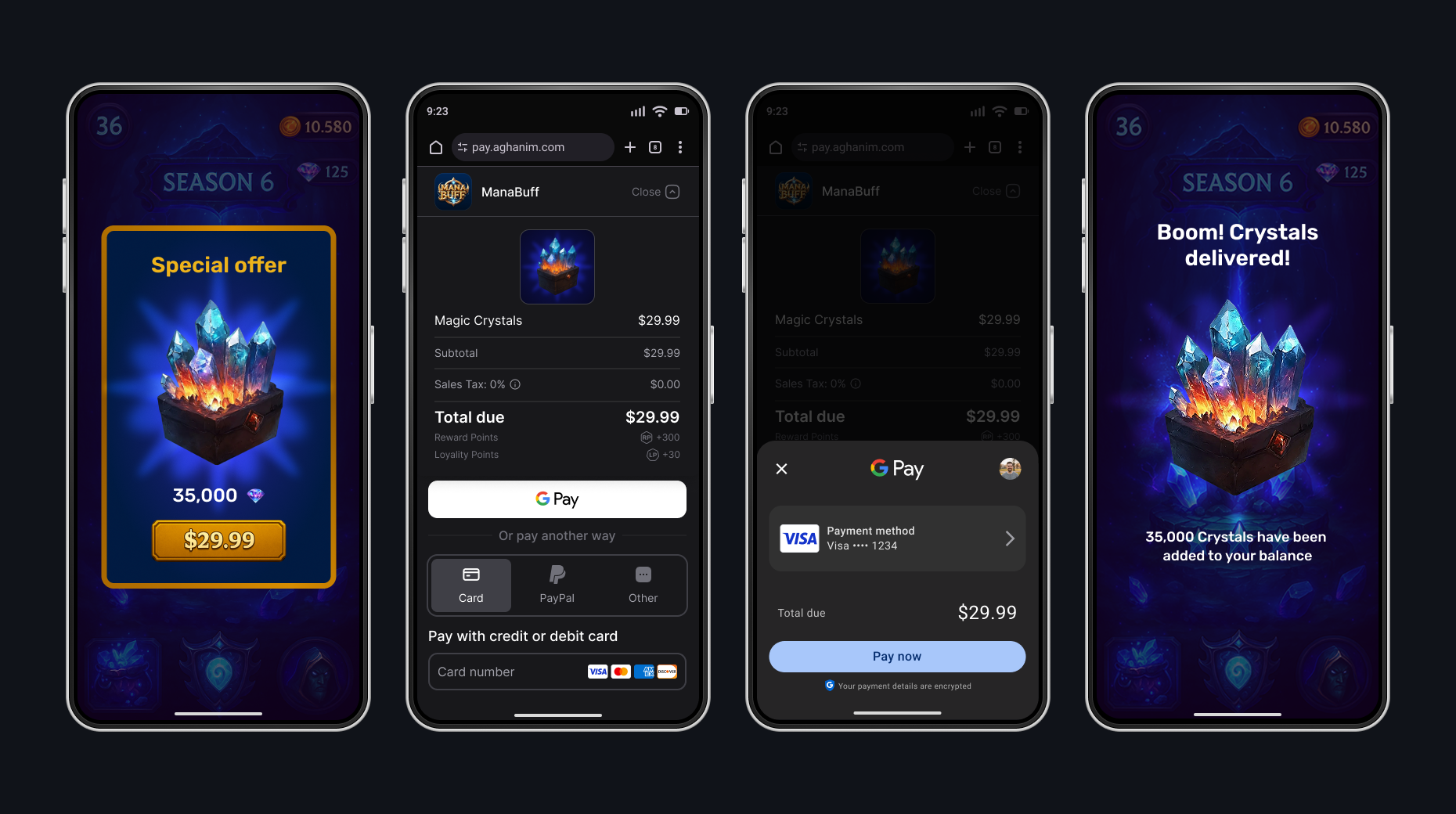
Android. Default browser
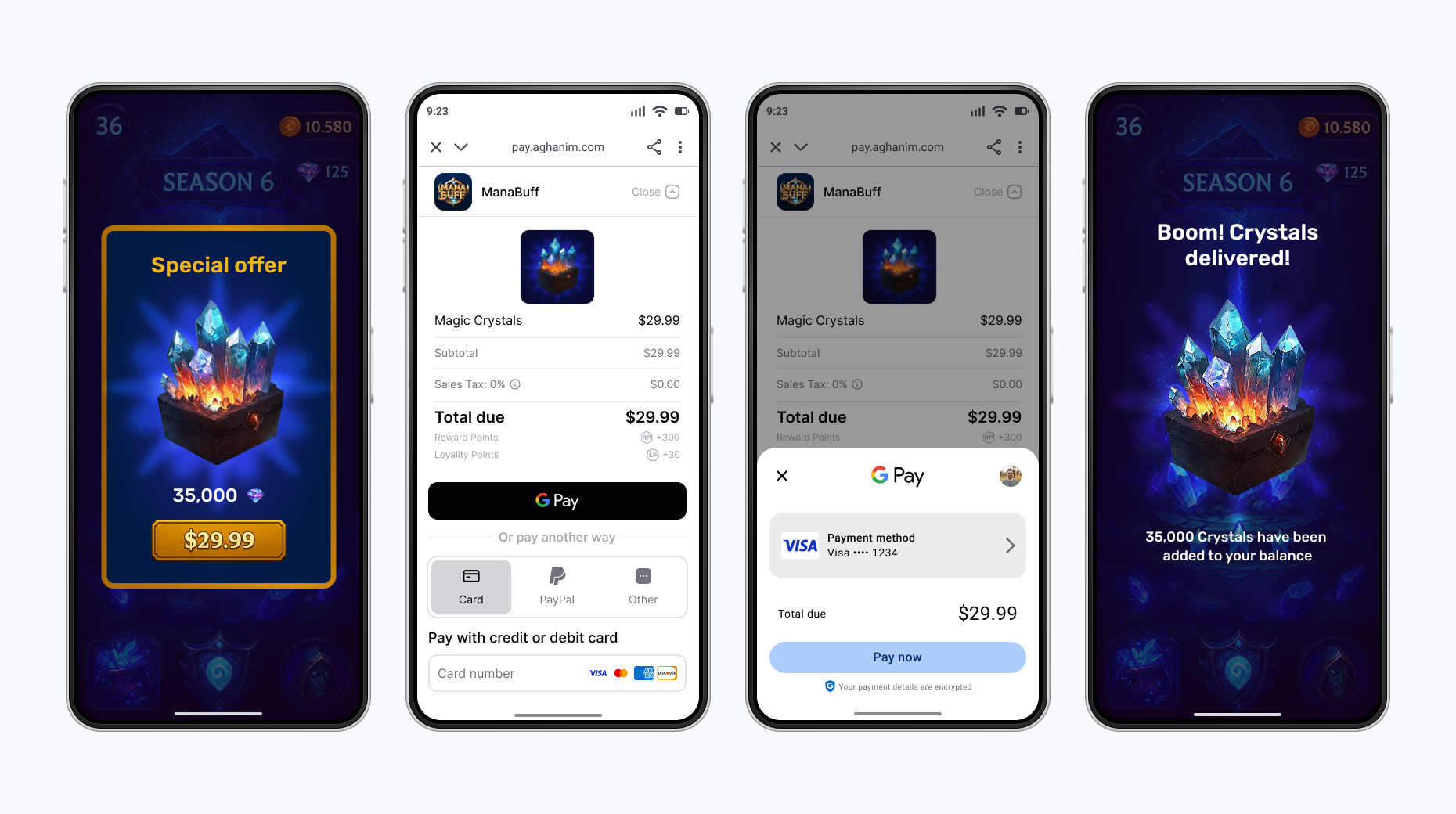
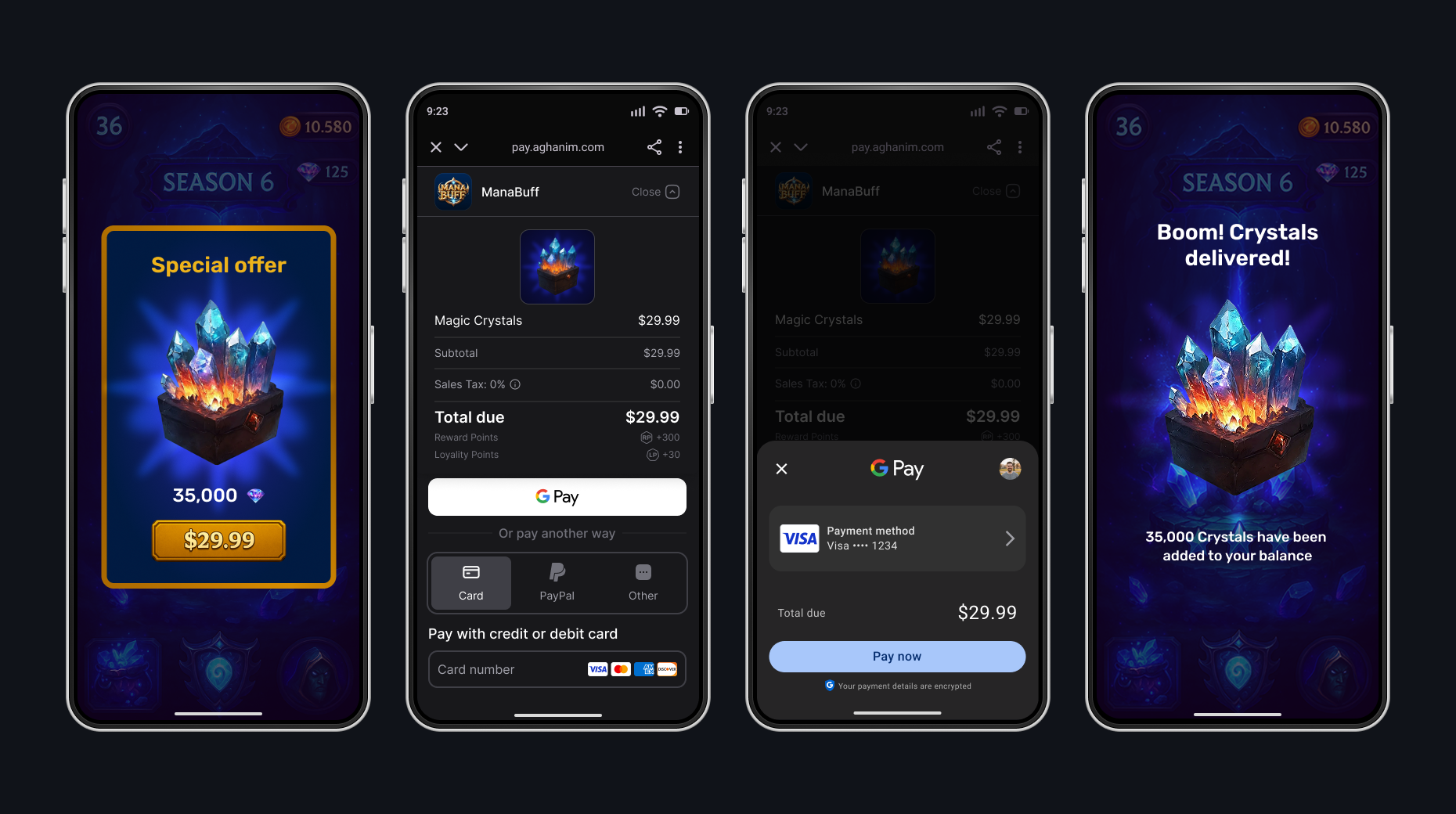
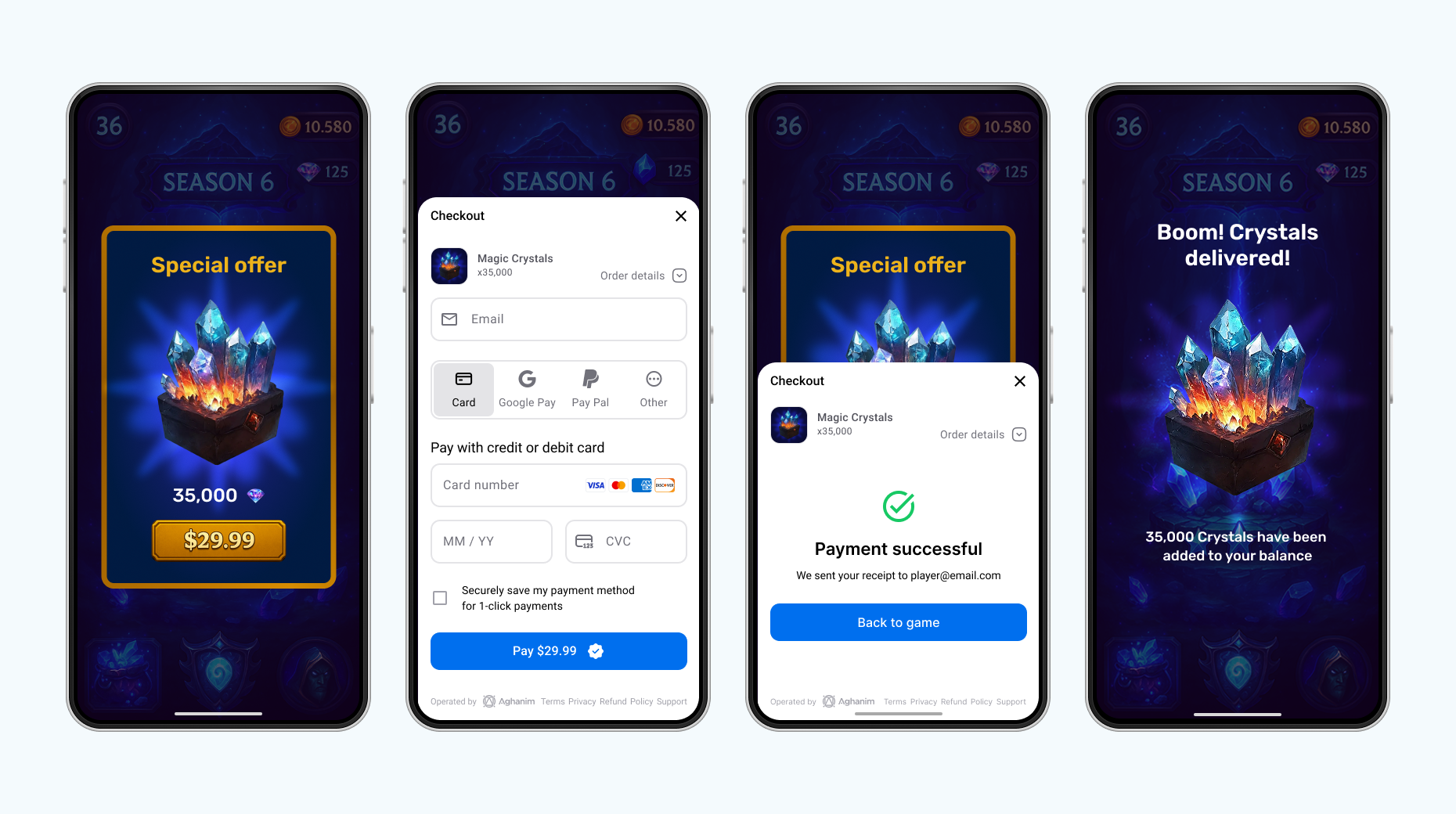
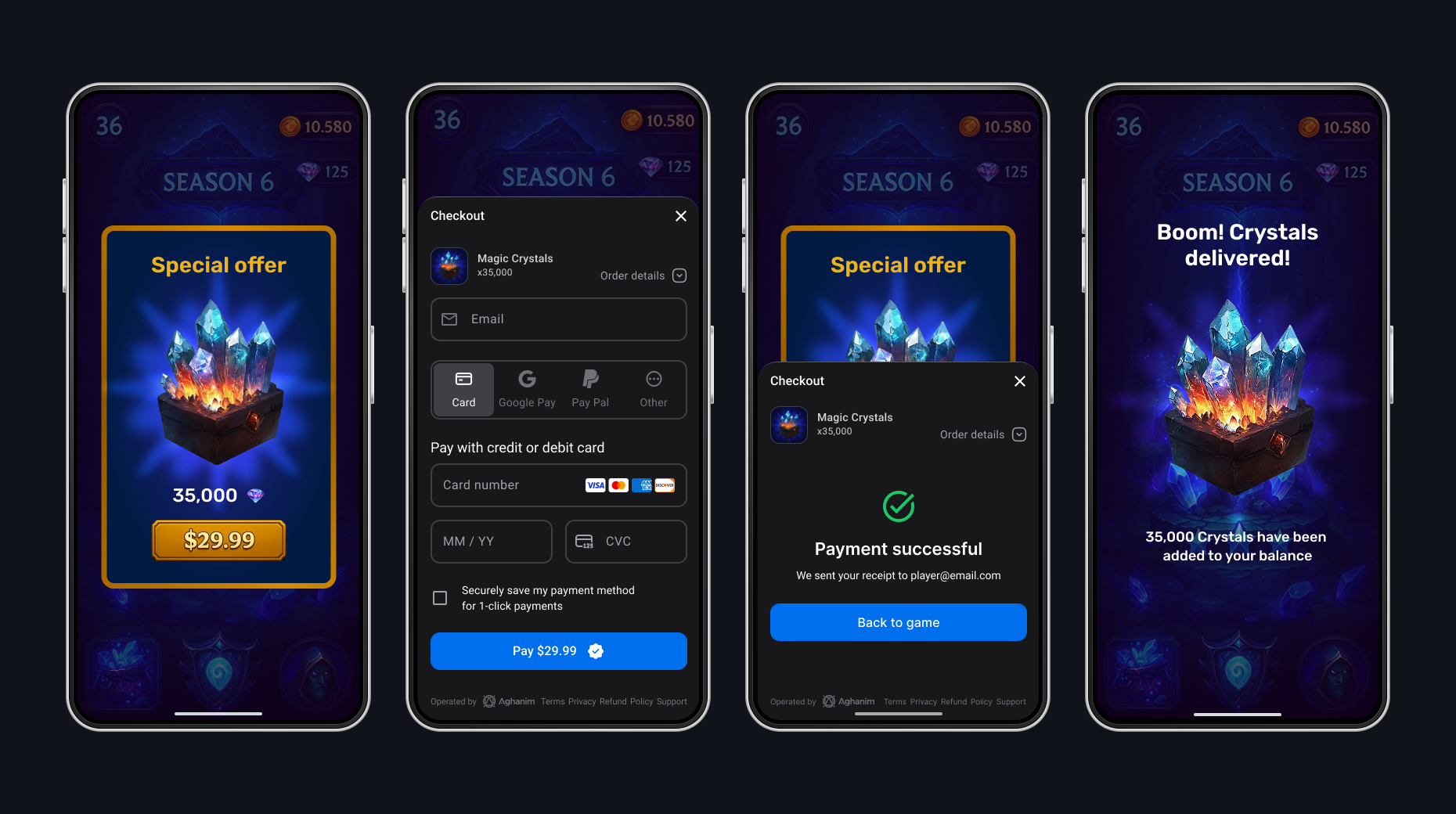
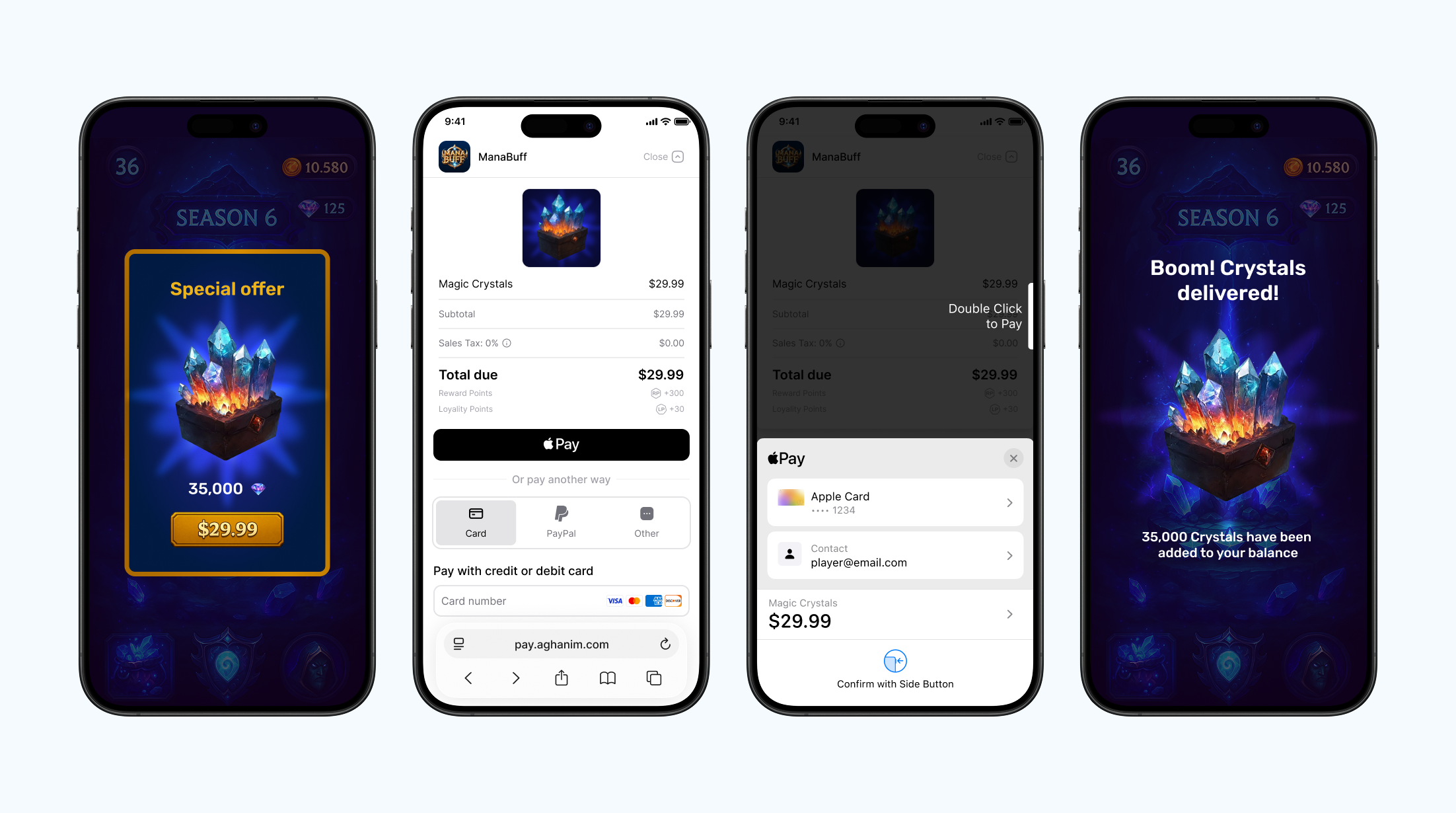
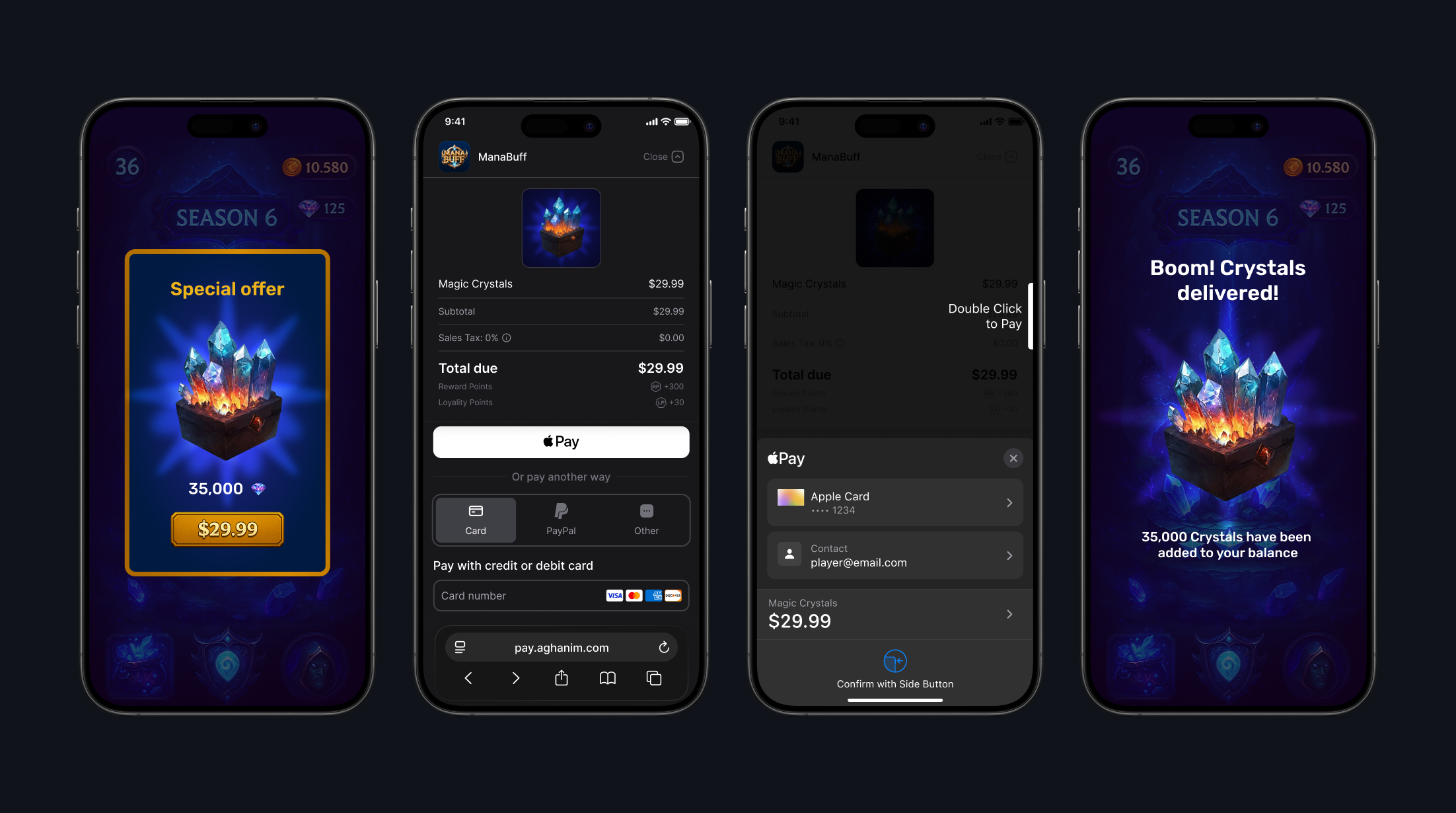
Everything hangs off the UAghanimSDKSubsystem game-instance subsystem. In the C++ examples below, SDK is that subsystem:
UAghanimSDKSubsystem* SDK = GetGameInstance()->GetSubsystem<UAghanimSDKSubsystem>();
In Blueprints: use the Get Game Instance Subsystem node with the AghanimSDKSubsystem class. Player, order, item, and checkout operations are exposed as latent async Blueprint nodes (usable from C++ via AghanimAsyncActions.h).
Call the SDK from the game thread. Every result and event is delivered on the game thread too, so handlers can touch UObjects and Blueprint state directly.
Every async node reports through a success pin and a failure pin, and both carry the same data pins. The payload is filled only on the success pin, the FAghanimError only on the failure pin, and the other one is left at its default.
Integration
To integrate the SDK, see its prerequisites and the detailed instruction on Integrate → Unreal Engine.
Method reference
Initialize with API key
You normally do not initialize the SDK manually: the subsystem reads the API Key from Project Settings → Plugins → Aghanim SDK when the game instance starts and initializes itself. Use InitializeWithApiKey only when you obtain the key at runtime — leave the project setting empty and call it once.
- C++
UAghanimSDKSubsystem* SDK = GetGameInstance()->GetSubsystem<UAghanimSDKSubsystem>();
SDK->InitializeWithApiKey(TEXT("<YOUR_SDK_KEY>"));
Blueprint node: Initialize With Api Key.
| Parameter | Type | Required | Description |
|---|---|---|---|
ApiKey | FString | Yes | SDK key issued by Aghanim (client/publishable key). |
Set player ID
To set the player ID once for the current game instance, use the Aghanim Set Player Id async action. The SDK will use the ID in all following method calls: orders are created on behalf of this player. The call is asynchronous, so wait for On Success before starting a checkout or any Orders API call.
- C++
UAghanimSetPlayerIdAction* Action =
    UAghanimSetPlayerIdAction::AghanimSetPlayerId(this, TEXT("player-123"));

// Handlers take (const FAghanimError& Error); the error is empty on success.
Action->OnSuccess.AddDynamic(this, &UMyStore::HandlePlayerIdSet);
Action->OnFailure.AddDynamic(this, &UMyStore::HandleError);
Action->Activate();
Blueprint node: Aghanim Set Player Id (async, Aghanim SDK → Player; pins On Success and On Failure, each with Error).
| Parameter | Type | Required | Description |
|---|---|---|---|
PlayerId | FString | Yes | Unique ID for the player. |
A blank ID is rejected with the InvalidArgument error type and PlayerId as the argument name.
Clear player ID
To remove the player ID from the SDK, for example when the player signs out, use the Aghanim Clear Player Id async action.
- C++
UAghanimClearPlayerIdAction* Action =
    UAghanimClearPlayerIdAction::AghanimClearPlayerId(this);

// Handlers take (const FAghanimError& Error); the error is empty on success.
Action->OnSuccess.AddDynamic(this, &UMyStore::HandlePlayerIdCleared);
Action->OnFailure.AddDynamic(this, &UMyStore::HandleError);
Action->Activate();
Blueprint node: Aghanim Clear Player Id (async, Aghanim SDK → Player; pins On Success and On Failure, each with Error).
Check launch mode availability
Checkout launch modes differ per platform, so query IsCheckoutLaunchModeAvailable before launching instead of hardcoding platform checks.
- C++
if (SDK->IsCheckoutLaunchModeAvailable(EAghanimCheckoutLaunchMode::InAppBrowser))
{
    // Safe to start a checkout with this launch mode on the current platform.
}
Blueprint node: Is Checkout Launch Mode Available (pure).
| Parameter | Type | Required | Description |
|---|---|---|---|
LaunchMode | EAghanimCheckoutLaunchMode | Yes | The launch mode to test. |
EAghanimCheckoutLaunchMode values and current support:
| Value | Presentation | Android | iOS | Desktop |
|---|---|---|---|---|
Native | Platform-native checkout UI. | ✅ | — | — |
InAppBrowser | In-app browser tab: SFSafariViewController (iOS), Custom Tabs (Android). | ✅ | ✅ | — |
DefaultBrowser | The device's default external browser. | ✅ | ✅ | ✅ |
WebView | WebView over the game (bottom sheet; full screen on Android optionally). | ✅ | ✅ | — |
The related IsWebViewPresentationSupported method (Blueprint node: Is Web View Presentation Supported, pure) returns whether the platform honors the WebViewPresentation choice on the checkout params — currently Android only; iOS always uses the bottom sheet.
Create Checkout item
To create an item representation, fill an FAghanimCheckoutItem struct. The item must already exist in SKU Management → Items, either created there or through the S2S API. Checkout rejects a SKU that is not in the game's catalog, and takes every price from the catalog; the client cannot set or override a price.
- C++
FAghanimCheckoutItem Item;
Item.Sku      = TEXT("items.new.ba68a028-2d51-46b4-a854-68fc16af328a"); // required

// Optional display overrides:
// Item.Name, Item.Description, Item.ImageUrl
Blueprint node: Make AghanimCheckoutItem.
| Field | Type | Required | Description |
|---|---|---|---|
Sku | FString | Yes | Item SKU from the Dashboard. |
Name | FString | No | Display name override. |
Description | FString | No | Description override. |
ImageUrl | FString | No | Image URL override. |
Create redirect behavior
To choose the behavior of redirecting the player after they have completed the payment successfully, set the RedirectSettings field on the checkout params.
- Immediate
- Delayed
- No redirect
When the player has completed the payment, the SDK redirects them immediately to the deep link from BackToGameUrl.
- C++
Params.RedirectSettings.Mode = EAghanimRedirectMode::Immediate;
When the player has completed the payment, the SDK shows the screen for the successful payment for the given number of seconds, then redirects the player to the deep link from BackToGameUrl.
- C++
Params.RedirectSettings.Mode         = EAghanimRedirectMode::Delayed;
Params.RedirectSettings.DelaySeconds = 5;
When the player has completed the payment, they stay on the screen for the successful payment. To exit it, they manually close it or navigate away. After, you should redirect them to the deep link from BackToGameUrl by yourself.
- C++
// The default: the player stays on the success screen and the
// redirectSettings block is omitted from the created order.
Params.RedirectSettings.Mode = EAghanimRedirectMode::NoRedirect;
| Field | Type | Required | Description |
|---|---|---|---|
Mode | EAghanimRedirectMode | Yes | Redirect mode: NoRedirect (default), Immediate, or Delayed. |
DelaySeconds | int32 | Yes for Delayed | Delay in seconds before the redirect. Negative values are treated as unspecified. |
Create UI settings
To set the appearance mode for the Checkout, set the UiSettings field on the checkout params.
- Auto
- Dark
- Light
The SDK automatically detects and applies the appropriate appearance mode based on the system setting.
- C++
// The default: follow the platform/device appearance.
Params.UiSettings.Mode = EAghanimUiMode::Auto;
The SDK forces dark mode appearance for the Checkout UI.
- C++
Params.UiSettings.Mode = EAghanimUiMode::Dark;
The SDK forces light mode appearance for the Checkout UI.
- C++
Params.UiSettings.Mode = EAghanimUiMode::Light;
| Field | Type | Required | Description |
|---|---|---|---|
Mode | EAghanimUiMode | Yes | UI mode: Auto (default), Dark, or Light. |
Create Checkout params
To create Checkout params, a representation of what the player sees on the payment form, fill an FAghanimCheckoutParams struct. At least one item is required.
- C++
FAghanimCheckoutParams Params;
Params.Items.Add(Item); // required: at least one item

// All optional:
Params.Locale        = EAghanimLocale::En;
Params.BackToGameUrl = TEXT("yourgame://checkout/return");
Blueprint node: Make AghanimCheckoutParams.
| Field | Type | Required | Description |
|---|---|---|---|
Items | TArray<FAghanimCheckoutItem> | Yes | Non-empty list of items. An empty list fails with the InvalidArgument error type. |
Locale | EAghanimLocale | No | Locale for localization. Defaults to En. Find the full list of supported locales in Checkout → Locales. |
BackToGameUrl | FString | No | Deep link URL to return the player to your game after payment. Its scheme has to be one your app handles; see Configure deep links. |
RedirectSettings | FAghanimRedirectSettings | No | Post-payment redirect behavior. |
Metadata | TMap<FString, FString> | No | Metadata structured as "key-value" pairs for tracking purposes. |
UiSettings | FAghanimUiSettings | No | Checkout appearance settings. |
WebViewPresentation | EAghanimCheckoutWebViewPresentation | No | WebView launch mode only: BottomSheet (default) or FullScreen. Honored on Android; see Check launch mode availability. |
Start Checkout
To launch the Checkout process, use the Aghanim Start Checkout async action. It creates an order from the provided checkout params and opens the Checkout UI in the chosen launch mode. The action completes as soon as the checkout launches or fails — it does not wait for the player to finish or close the checkout.
- C++
UAghanimStartCheckoutAction* Action =
    UAghanimStartCheckoutAction::AghanimStartCheckout(this, Params, EAghanimCheckoutLaunchMode::InAppBrowser);

// Handlers take (FString OrderId, const FAghanimError& Error): the Order ID is set only
// on On Launched, the error only on On Failed.
Action->OnLaunched.AddDynamic(this, &UMyStore::HandleCheckoutLaunched);
Action->OnFailed.AddDynamic(this, &UMyStore::HandleCheckoutFailed);
Action->Activate();
Blueprint node: Aghanim Start Checkout (async).
| Parameter | Type | Required | Description |
|---|---|---|---|
Params | FAghanimCheckoutParams | Yes | Checkout configuration. |
LaunchMode | EAghanimCheckoutLaunchMode | Yes | How the checkout is presented. |
Every pin carries both an FString OrderId and an FAghanimError:
| Output pin | Filled | When |
|---|---|---|
OnLaunched | OrderId | The checkout launched; carries the created Order ID. |
OnFailed | Error | Bad params, unavailable launch mode, network failure, and so on. |
Present Checkout
To present the Checkout UI for an existing Order, use the Aghanim Present Checkout async action. Use this when you have an Order ID from server-to-server order creation, or to reopen a previously abandoned checkout.
- C++
UAghanimPresentCheckoutAction* Action =
    UAghanimPresentCheckoutAction::AghanimPresentCheckout(this, OrderId, EAghanimCheckoutLaunchMode::InAppBrowser);

// Handlers take (FString OrderId, const FAghanimError& Error): the Order ID is set only
// on On Presented, the error only on On Failed.
Action->OnPresented.AddDynamic(this, &UMyStore::HandleCheckoutPresented);
Action->OnFailed.AddDynamic(this, &UMyStore::HandleCheckoutFailed);
Action->Activate();
Blueprint node: Aghanim Present Checkout (async; pins On Presented and On Failed, each carrying both Order Id and Error). The ID is filled only on On Presented, the error only on On Failed.
| Parameter | Type | Required | Description |
|---|---|---|---|
OrderId | FString | Yes | ID of the existing Order to open. |
LaunchMode | EAghanimCheckoutLaunchMode | Yes | How the checkout is presented. |
On Checkout Closed
The subsystem's OnCheckoutClosed event fires when an on-screen checkout closes and carries the Order ID. iOS only, and only for the WebView and in-app browser launch modes — Android does not report checkout closes, and the external browser never does on any platform. It is also best-effort on iOS: it can be missed if the app is killed mid-checkout. Treat it as a hint to reconcile orders, never as a purchase result.
- C++
SDK->OnCheckoutClosed.AddDynamic(this, &UMyStore::HandleCheckoutClosed);

void UMyStore::HandleCheckoutClosed(FString OrderId)
{
    // Best-effort hint: verify fulfillment through orders, never assume the player paid.
}
In Blueprints: Bind Event to On Checkout Closed on the subsystem.
Get Order
To fetch a single Order by its ID, use the Aghanim Get Order async action.
- C++
UAghanimGetOrderAction* Action =
    UAghanimGetOrderAction::AghanimGetOrder(this, OrderId);

// Handlers take (const FAghanimOrder& Order, const FAghanimError& Error).
Action->OnSuccess.AddDynamic(this, &UMyStore::HandleOrder);
Action->OnFailure.AddDynamic(this, &UMyStore::HandleOrderFailed);
Action->Activate();
Blueprint node: Aghanim Get Order (async; pins On Success and On Failure, each carrying both Order and Error).
| Parameter | Type | Required | Description |
|---|---|---|---|
OrderId | FString | Yes | Unique ID for the Order. |
Returns an FAghanimOrder. See Order reference for its fields.
Get unconsumed Orders
To know what Orders have been paid for but not granted yet, use the Aghanim Get Unconsumed Orders async action. Requires the player ID to be set via Set player ID.
- C++
UAghanimGetUnconsumedOrdersAction* Action =
    UAghanimGetUnconsumedOrdersAction::AghanimGetUnconsumedOrders(this);

// Handlers take (const TArray<FString>& OrderIds, const FAghanimError& Error).
Action->OnSuccess.AddDynamic(this, &UMyStore::HandleUnconsumedOrders);
Action->OnFailure.AddDynamic(this, &UMyStore::HandleOrdersFailed);
Action->Activate();
Blueprint node: Aghanim Get Unconsumed Orders (async; pins On Success and On Failure, each carrying both Order Ids and Error).
Returns TArray<FString> — the list of unconsumed Order IDs.
Consume paid Order
To mark a paid Order as handled, use the Aghanim Consume Order async action. Consuming the same Order twice fails, so grant its items once the consume succeeds. Requires the player ID to be set via Set player ID.
- C++
UAghanimConsumeOrderAction* Action =
    UAghanimConsumeOrderAction::AghanimConsumeOrder(this, OrderId);

// Handlers take (const FAghanimError& Error); the error is empty on success.
Action->OnSuccess.AddDynamic(this, &UMyStore::HandleOrderConsumed);
Action->OnFailure.AddDynamic(this, &UMyStore::HandleError);
Action->Activate();
Blueprint node: Aghanim Consume Order (async; pins On Success and On Failure, each carrying an Error that is empty on success).
| Parameter | Type | Required | Description |
|---|---|---|---|
OrderId | FString | Yes | Unique ID for the Order. |
Get items
To fetch catalog items with localized prices, use the Aghanim Get Items async action.
- C++
TArray<FString> Skus = { TEXT("items.new.ba68a028-2d51-46b4-a854-68fc16af328a") };

UAghanimGetItemsAction* Action =
    UAghanimGetItemsAction::AghanimGetItems(this, Skus, EAghanimLocale::En);

// Handlers take (const TArray<FAghanimItem>& Items, const FAghanimError& Error).
Action->OnSuccess.AddDynamic(this, &UMyStore::HandleItems);
Action->OnFailure.AddDynamic(this, &UMyStore::HandleItemsFailed);
Action->Activate();
Blueprint node: Aghanim Get Items (async; pins On Success and On Failure, each carrying both Items and Error).
| Parameter | Type | Required | Description |
|---|---|---|---|
Skus | TArray<FString> | Yes | SKUs to fetch. An empty array means "no filter" and returns the whole catalog. |
Locale | EAghanimLocale | No | Locale for localization. Defaults to En. Find the full list of supported locales in Checkout → Locales. |
There is no SKU-count cap for you to work around.
Returns TArray<FAghanimItem>, each carrying:
| Property | Type | Description |
|---|---|---|
Sku | FString | SKU identifier of the item. |
Name | FString | Localized name of the item. |
Description | FString | Localized description of the item. |
Type | EAghanimItemType | Item category. See below. |
Price | FAghanimItemPrice | Localized price of the item. |
ImageUrl | FString | Image URL of the item. |
Quantity | int32 | Base quantity of the item. |
bIsStackable | bool | Whether the item is stackable. |
bIsCurrency | bool | Whether the item is a virtual currency. |
FAghanimItemPrice carries:
| Property | Type | Description |
|---|---|---|
Amount | int32 | Amount in minor units, for example cents for USD. |
AmountDecimal | FString | The exact amount as a decimal string, with no float rounding. |
Currency | FString | ISO 4217 currency code. |
Display | FString | Ready-to-render price string, for example $1.99. |
EAghanimItemType values:
| Value | Meaning |
|---|---|
Item | Regular item. |
Currency | In-game currency. |
Bundle | Bundle of items. |
Lootbox | Lootbox with random contents. |
Subscription | Subscription item. |
VirtualCurrency | Virtual currency item. |
Unknown | A type this SDK version does not recognize. |
A type added on the server after your plugin version shipped decodes to Unknown, so keep a default branch when you switch on it.
Get price points
To fetch localized price points for the requested locale, use the Aghanim Get Price Points async action.
- C++
UAghanimGetPricePointsAction* Action =
    UAghanimGetPricePointsAction::AghanimGetPricePoints(this, EAghanimLocale::En);

// Handlers take (const FAghanimPricePointsResponse& Response, const FAghanimError& Error).
Action->OnSuccess.AddDynamic(this, &UMyStore::HandlePricePoints);
Action->OnFailure.AddDynamic(this, &UMyStore::HandlePricePointsFailed);
Action->Activate();
Blueprint node: Aghanim Get Price Points (async; pins On Success and On Failure, each carrying both Response and Error).
| Parameter | Type | Required | Description |
|---|---|---|---|
Locale | EAghanimLocale | No | Locale for localization. Defaults to En. Find the full list of supported locales in Checkout → Locales. |
Returns an FAghanimPricePointsResponse:
| Property | Type | Description |
|---|---|---|
Context | FAghanimPricePointsContext | The locale and currency the prices were resolved in. |
PricePoints | TArray<FAghanimPricePoint> | One resolved price point per SKU. |
FAghanimPricePointsContext carries Country, BaseCurrency, and LocalCurrency, all FString.
Each FAghanimPricePoint carries:
| Property | Type | Description |
|---|---|---|
Id | FString | Identifier of the price point. |
BasePrice | FAghanimPrice | Catalog price: Amount in minor units, AmountDecimal exact. |
LocalPrice | FAghanimLocalPrice | Same, plus a ready-to-render Display string. |
Order reference
Aghanim Get Order returns an FAghanimOrder. All of its properties are Blueprint-readable.
| Property | Type | Description |
|---|---|---|
Id | FString | Unique ID of the Order. |
Items | TArray<FAghanimOrderItem> | Items included in the Order. See Order item. |
CheckoutUrl | FString | URL of the payment form for this Order. |
BackToGameUrl | FString | URL that returns the player to the game after payment. |
BackToGameSettings | FAghanimBackToGameSettings | Per-platform return links configured for the game. See Back-to-game settings. |
FAghanimOrder does not carry a payment status, so Aghanim Get Order cannot tell you whether one specific Order was paid. Use Aghanim Get Unconsumed Orders to find the Orders the player has paid for and not yet been granted, or the item.add webhook if you run a game server.
Order item
| Property | Type | Description |
|---|---|---|
Sku | FString | SKU identifier of the item. |
Name | FString | Name of the item. |
Description | FString | Description of the item. |
Currency | FString | ISO 4217 currency code for the item price. |
Quantity | int32 | Quantity of the item in the Order. |
ImageUrl | FString | Image URL of the item. |
FAghanimOrderItem also declares Price and PriceMinorUnit, which this plugin version never fills in; both are always 0. Read prices from the catalog with Get items instead.
Back-to-game settings
FAghanimBackToGameSettings holds the per-platform return links configured for the game, with the {order_id} placeholder already substituted:
| Property | Type | Description |
|---|---|---|
IosCustomUrlScheme | FString | iOS custom URL scheme link. |
IosUniversalLink | FString | iOS Universal Link. |
AndroidAppLink | FString | Android App Link. |
Error reference
Failed operations report an FAghanimError:
| Field | Type | Description |
|---|---|---|
ErrorType | EAghanimErrorType | Machine-readable error category. Branch on it with Switch on EAghanimErrorType. |
Type | FString | Raw error-type string as reported on the wire (e.g. not_found), preserved verbatim. |
DebugMessage | FString | Diagnostic detail for logging only; not for display to players. |
HttpStatusCode | int32 | HTTP status code when the error carries one; 0 otherwise. |
ValidationErrors | TArray<FAghanimValidationError> | Field-level problems reported with a Validation error; empty otherwise. See Validation error detail. |
Argument | FAghanimArgumentError | The argument an InvalidArgument error refers to. See Invalid argument. |
EAghanimErrorType values:
| Value | When fired |
|---|---|
None | No error: the operation succeeded. |
Unknown | The error type was not recognized; Type keeps the raw string. |
NotInitialized | The SDK has not been initialized (no API key configured). |
UnsupportedLaunchMode | The requested checkout launch mode is not available on this platform. |
DispatchFailed | The call could not be dispatched to the native SDK. |
Network | A network request failed. |
Timeout | A request timed out. |
NotAuthorized | HTTP 403. |
NotAuthenticated | HTTP 401. |
Server | The server reported an internal error (HTTP 5xx). |
NotFound | HTTP 404. |
BadRequest | HTTP 400. |
Validation | The request failed validation. |
Conflict | HTTP 409. |
RateLimitExceeded | HTTP 429. |
ServerUnavailable | HTTP 503. |
PlayerIdNotSet | The operation requires a player ID and none is set. |
InvalidArgument | An argument was invalid (e.g. empty Items on the checkout params). |
InvalidResponse | The native SDK returned a response the plugin could not parse. |
Unsupported | A valid request the platform cannot serve. |
Validation error detail
ValidationErrors is a list of FAghanimValidationError, one per field-level problem:
| Property | Type | Description |
|---|---|---|
Location | TArray<FString> | Path to the invalid field, for example ["body", "items", "0", "sku"]. |
Message | FString | Human-readable description of the problem. |
Type | FString | Machine-readable reason, for example value_error.missing. |
Invalid argument
InvalidArgument is raised by the SDK before any request goes out. It is distinct from BadRequest, which is an HTTP 400 from the server. FAghanimError::Argument says which argument was rejected and why; both fields are None when the SDK did not report them.
ArgumentName identifies the offending argument:
| Value | Argument |
|---|---|
OrderId | The OrderId of order and present-checkout operations. |
PlayerId | The PlayerId of Aghanim Set Player Id. |
Sku | The Sku of a single checkout item. |
Skus | The Skus of Aghanim Get Items. |
Items | The Items of a checkout. |
Presenter | The presenter supplied to a checkout; iOS only. |
Unknown | An argument this SDK version does not recognize. |
None | No argument was reported. |
ArgumentReason describes how it failed validation:
| Value | Meaning |
|---|---|
Blank | A required string was empty or whitespace. |
Empty | A required collection had no entries. |
Unusable | The value was supplied but could not be used. |
Unknown | A reason this SDK version does not recognize. |
None | No reason was reported. |
FAQ
The plugin targets Unreal Engine 5.8 and can stay enabled for Android, iOS, Windows, macOS, and Linux — it compiles and packages everywhere. Checkout availability differs per platform and launch mode:
| Platform | Native | In-app browser | Default browser | WebView |
|---|---|---|---|---|
| Android | ✅ | ✅ | ✅ | ✅ |
| iOS | — | ✅ | ✅ | ✅ |
| Windows / macOS / Linux | — | — | ✅ | — |
Query IsCheckoutLaunchModeAvailable at runtime instead of hardcoding the table, so shared game code keeps working as support evolves.
On Windows, macOS, Linux, and in the editor there is no native Aghanim SDK — the plugin talks to the Aghanim REST API directly. Orders and catalog operations (get order, unconsumed orders, consume, items, price points) work the same as on mobile, but the only checkout launch mode is Default browser: the plugin creates the order and opens the checkout URL in the OS default browser. The Native, In-app browser, and WebView modes report unavailable through IsCheckoutLaunchModeAvailable. To test those modes, run on a physical Android or iOS device.
A successful launch does not mean the player paid: Aghanim Start Checkout completes when the payment form opens, and the payment happens later, possibly outside the app — the player may even finish it on another device. The OnCheckoutClosed event is only a best-effort hint (it never fires for the external browser and can be missed if the app is killed mid-checkout).
Always verify fulfillment through orders: call Aghanim Get Unconsumed Orders on startup, on focus regain, and after a checkout closes; then call Aghanim Consume Order for a returned order and grant its items from that node's On Success pin. An Order ID that stops appearing in that list has been consumed; one that never appears has not been paid for yet. If you run a game server, use the item.add webhook instead.
需要技术支持?
联系我们的集成技术团队: [email protected]