Passwordless Authorization
This guide explains how to enable player authorization through your Game App, allowing seamless access to the game hub without requiring players to manually enter their user ID.
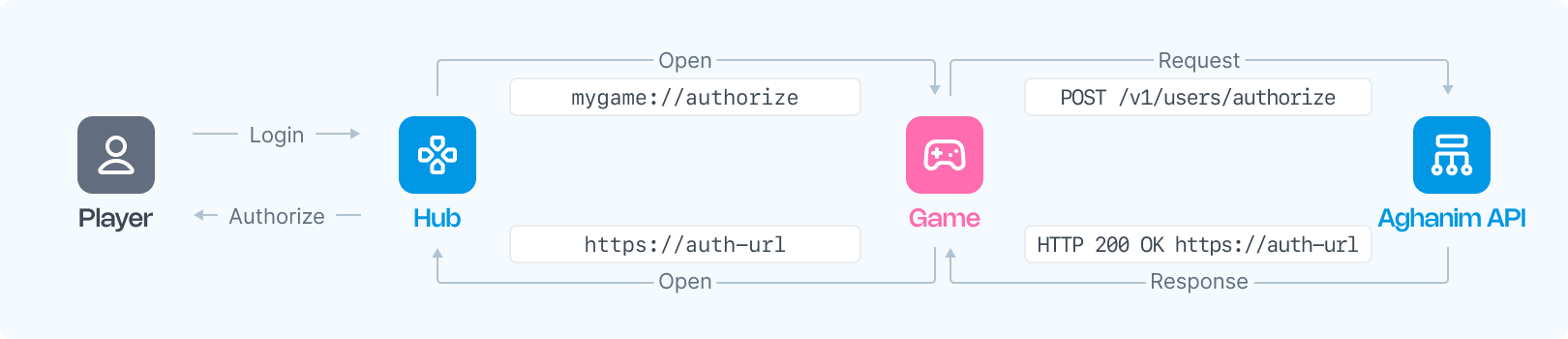
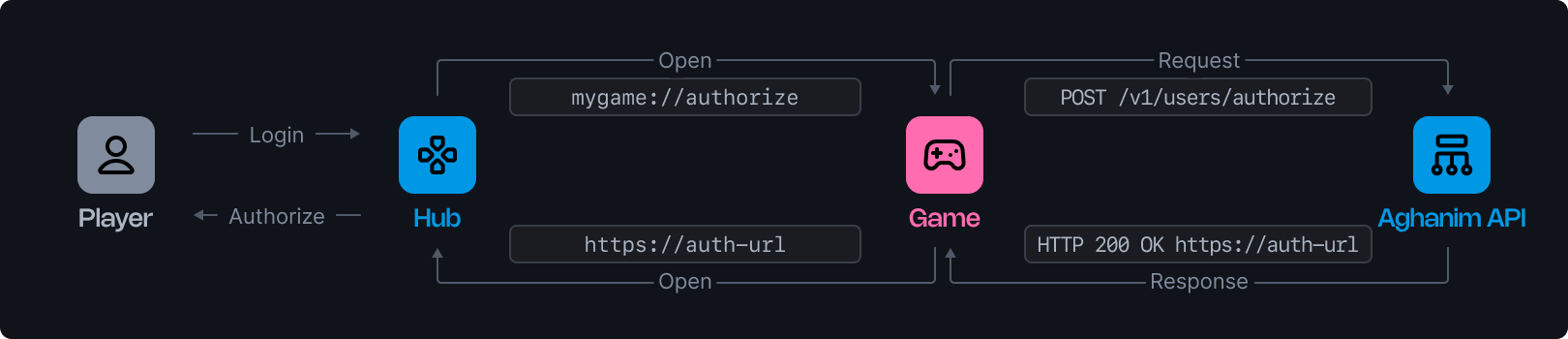
Two ways the flow starts
The same Authorize User endpoint powers two variants, and the choice determines whether the nonce is needed:
- Hub-initiated (QR code / login button). The player is on the game hub; it shows a QR code or login button, generates a
nonce, and waits to be logged in over a websocket keyed by thatnonce. This is the flow described step by step below. - Game-initiated ("To hub" button). The player starts in your game app and you send them into the hub already authorized. Same S2S call, but you omit the
nonceand open the returnedauthorization_urlyourself. See Game-initiated login.
Prerequisites
- An active Server-to-Server (S2S) API key for request authentication.
- A Deep Link URL configured in the Aghanim Dashboard under Customization → Login (see below) — required for the hub-initiated flow only.
Configure the Deep Link URL
The Deep Link URL is the address the game hub opens when the player taps the login button. Set it in the Aghanim Dashboard under Customization → Login → Deep Link URL.
This is the reverse of game → hub deep links: there your game opens a link into the hub (/go/login?player_id=…); here the hub opens a link into your game to authorize the player.
The game hub appends the after_auth and nonce query parameters to this URL automatically — you do not need to add placeholders yourself. For example, a configured value of https://your-game-server.com/authorize-player becomes https://your-game-server.com/authorize-player?after_auth=open_authorization_url&nonce=<value> when the hub opens it. Any static query parameters you include in the configured URL are preserved.
Use an https:// Android App Link / iOS Universal Link that your own domain handles (for example https://your-game-server.com/authorize-player) rather than a custom scheme such as mygame://authorize-player.
The choice matters when the game app is not installed — for example, the player opens the hub in a mobile browser:
- A custom scheme (
mygame://…) has no operating-system fallback. If nothing on the device handles the scheme, the browser does nothing and the player is left on the loading spinner. Yourapple-app-site-associationandassetlinks.jsonfiles do not apply to custom schemes. - An https App Link / Universal Link falls back automatically: the OS opens your app when it is installed, and otherwise the browser loads that https URL normally. Point that URL at an endpoint on your server that redirects the player wherever you want them to land when the app is missing (for example, the web store), so they are never stuck.
To enable App Links / Universal Links, host assetlinks.json (Android) and apple-app-site-association (iOS) on the domain used in your Deep Link URL, and have your app claim the corresponding path.
Step 1: Intercept the Authorization Deep Link in the Game Client
When the player clicks the login button, the game hub opens your Deep Link URL with after_auth and nonce appended. The URL will resemble the following format:
https://your-game-server.com/authorize-player?after_auth=open_authorization_url&nonce=<value>
Here, <value> is a unique string generated by the game hub for each authorization request, and after_auth tells the Game Client what to do in Step 4.
The Game Client (or, for an https App Link that the app is not installed to handle, your server) must intercept the deep link and read nonce and after_auth from the URL by name, not by position. This nonce will be used in the authorization request to the Game Backend.
Step 2: Forward the Authorization Request to the Game Backend
After the player initiates an authorized session, the Game Client should send an authorization request to the Game Backend.
Step 3: Send the Authorization Request to Aghanim
Upon receiving the request from the Game Client, the Game Backend must send a POST request to the Aghanim API using the endpoint Authorize User. Include the following parameters in the request:
| Parameter | Description | Required? |
|---|---|---|
player_id | The unique identifier for the player to be authorized. | Yes |
nonce | The unique string provided by the game hub. Required for the hub-initiated flow; omit it for game-initiated login. | Conditional |
redirect_path | The game hub page to redirect the player to. | No |
player_info | Optional player profile to seed on first authorization. Accepts name, avatar_url, attributes, and custom_attributes. | No |
The nonce ties the authorization to a waiting hub session — it is what lets the hub that shows the QR code / login button be logged in over its websocket. Omit it when your game opens the authorization_url itself (see Game-initiated login).
Example Request
curl --request POST \
  --url https://api.aghanim.com/s2s/v1/users/authorize \
  --header 'Authorization: Bearer YOUR_S2S_API_KEY' \
  --header 'Content-Type: application/json' \
  --data '{
    "player_id": "2D2R-OP3C",
    "nonce": "N2Q3Y2MGI6bQ",
    "player_info": {
      "name": "Han Solo",
      "avatar_url": "https://example.com/han.png",
      "attributes": { "hard_currency_amount": 500 },
      "custom_attributes": { "faction": "rebel" }
    }
  }'
Example Response
{
  "authorization_url": "https://your-game-hub/go/login?token=dXNyX...FTV0xqTWg&nonce=N2Q3Y2MGI6bQ"
}
Step 4: Redirect the Player to the Authorization URL
Once the Game Backend receives the authorization_url from Aghanim, it should pass this URL back to the Game Client. The Game Client should then launch the default browser and open the authorization URL. This action completes the player’s authorization on the game hub.
The game hub sends after_auth=prompt_open_pwa only when the login starts from the game hub installed on the iOS home screen; every other login gets open_authorization_url. For prompt_open_pwa, do not open the authorization URL. Show a message asking the player to return to the game hub app instead: the app completes the login by itself.
Game-initiated login
Use this variant when the player starts in your game app and you want to drop them into the hub already logged in — for example a "To hub" button — instead of the hub opening your app. It reuses the same Authorize User endpoint, with two differences from the flow above: you skip the deep-link interception (Steps 1–2), and you omit the nonce.
- The player taps your in-game button.
- Your Game Backend calls
POST /s2s/v1/users/authorizewith justplayer_id(and an optionalredirect_path) — nononce. - Aghanim returns an
authorization_urlof the formhttps://your-game-hub/go/login?token=…. - Pass that URL back to the Game Client and open it in the device's default browser. The
tokenin the URL logs the player into the hub.
Notes:
- This direction does not require a configured Deep Link URL, and it works regardless of which web login methods are enabled — you do not need to enable the "Login with Player Id" method on the hub. It is a convenient way to keep the hub's own login screen limited to a single method (for example QR code) while still logging players in directly from the game.
- Because no hub session is waiting on a websocket, there is nothing to correlate with a
nonce, and the Reject Authorization call (which is keyed bynonce) does not apply. If your game decides a player must not be logged in, simply do not open theauthorization_url.
Handling Authorization Failures
The game cannot always authorize a player. For example, the player has not yet reached the level required to access the game hub, or the account is restricted. In these cases, tell Aghanim that the login cannot proceed so the player is not left waiting on a loading spinner.
Reject the Authorization Request
When the Game Backend decides that the login cannot proceed, send a POST request to the Aghanim API using the endpoint Reject Authorization. Include the same nonce you received in the authorization deep link:
| Parameter | Description | Required? |
|---|---|---|
nonce | The unique string provided by the game hub, taken from the authorization deep link. | Yes |
reason | The reason the authorization cannot proceed. One of not_eligible (the player does not meet the requirements to access the hub), banned, or rejected (generic). | Yes |
Example Request
curl --request POST \
  --url https://api.aghanim.com/s2s/v1/users/authorize/reject \
  --header 'Authorization: Bearer YOUR_S2S_API_KEY' \
  --header 'Content-Type: application/json' \
  --data '{
    "nonce": "N2Q3Y2MGI6bQ",
    "reason": "not_eligible"
  }'
Example Response
{
  "error_url": "https://your-game-hub/error?message_code=auth_via_game.not_eligible"
}
Show the Error to the Player
How you surface the failure is up to the game:
- In the game client. If you display the error in the game's own UI, no further action is required. You can ignore
error_url. - On the game hub. If you prefer to show the error in the browser, pass the
error_urlback to the Game Client and open it in the default browser, exactly as you would theauthorization_urlon success. The game hub then displays the corresponding error message to the player.
Need help?
Contact our integration team at [email protected]