Unity SDK reference
The Aghanim Unity SDK that allows you to use the Checkout within both your Android and iOS apps.
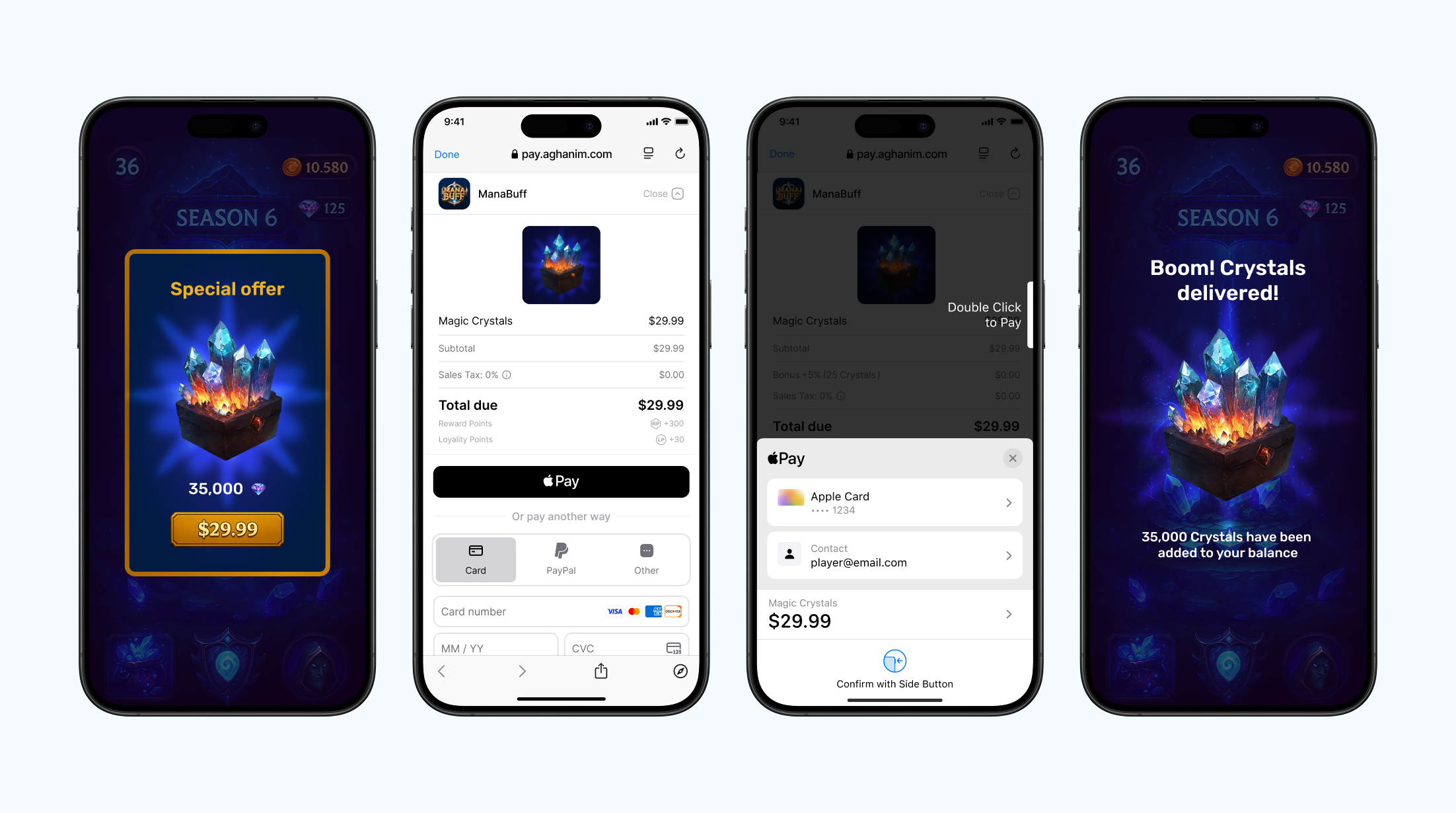
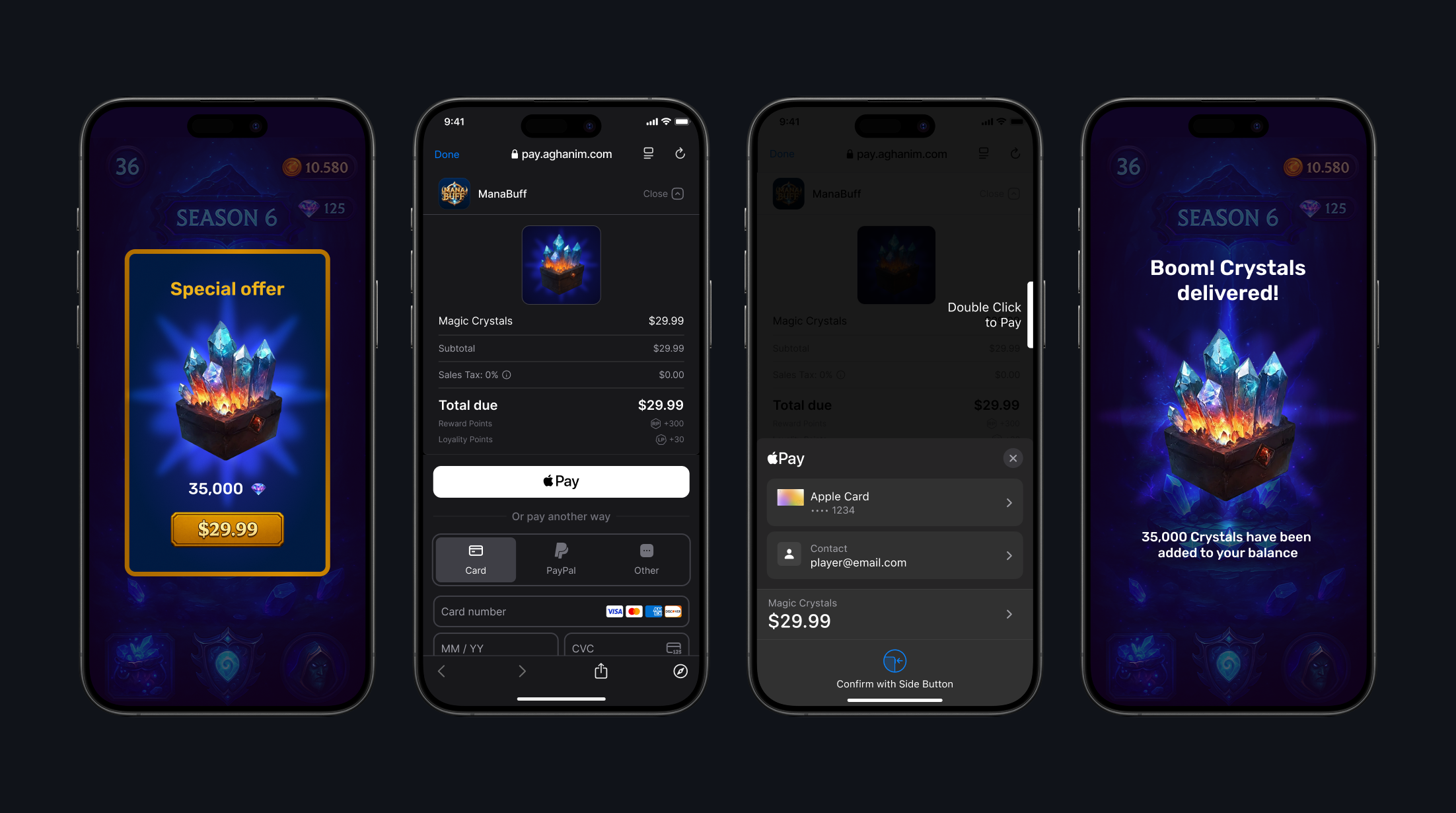
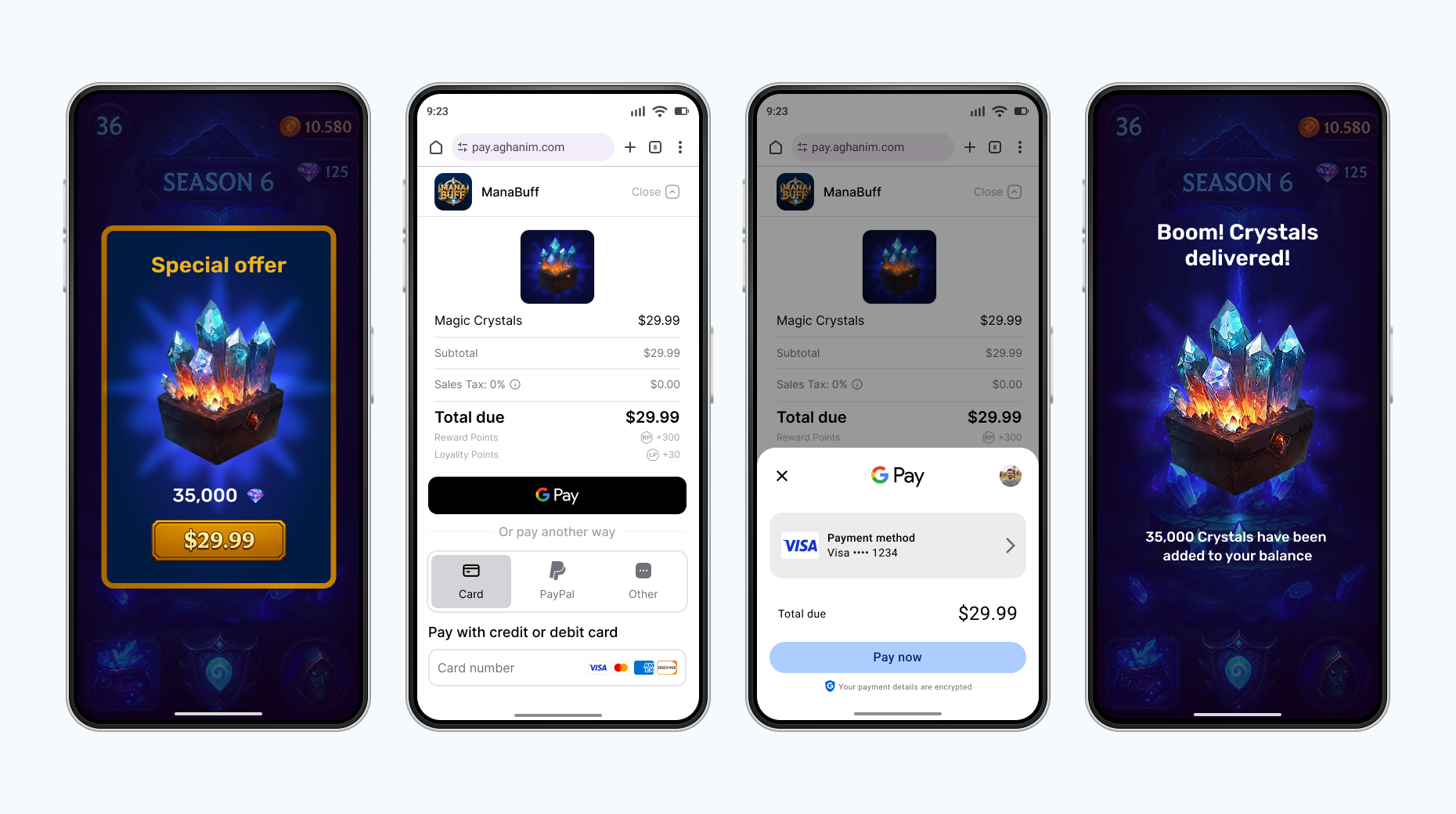
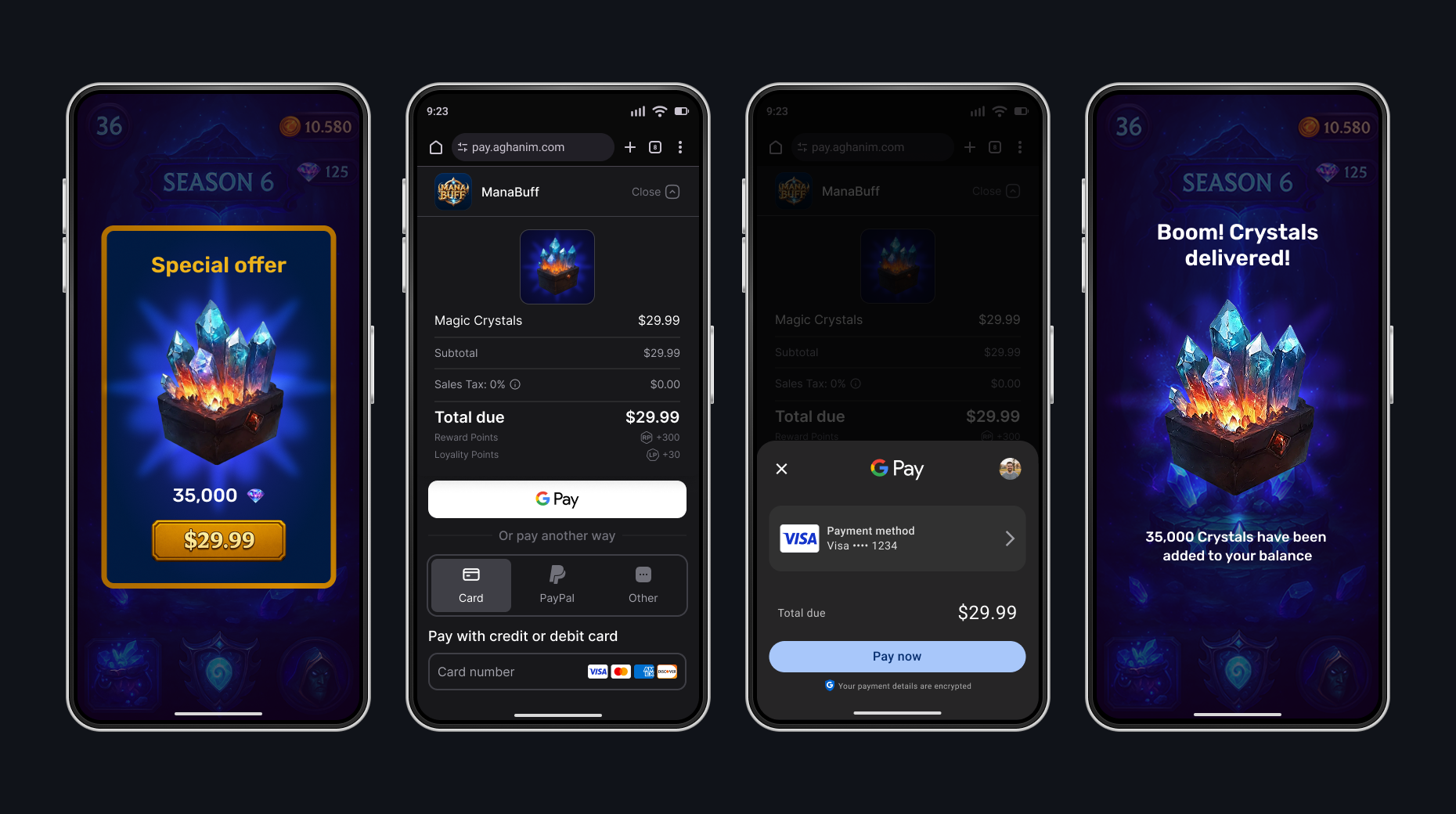
Android. Default browser
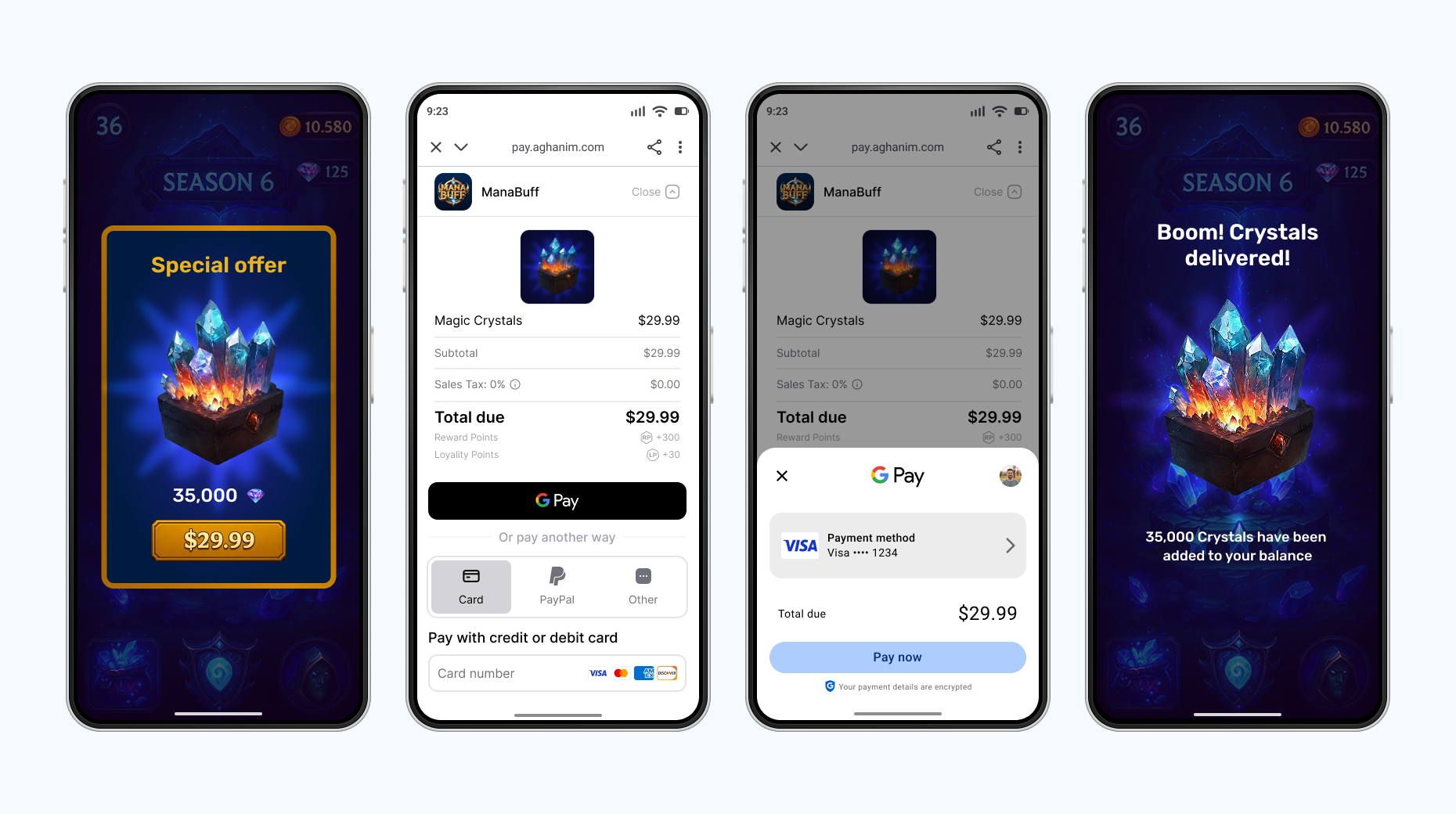
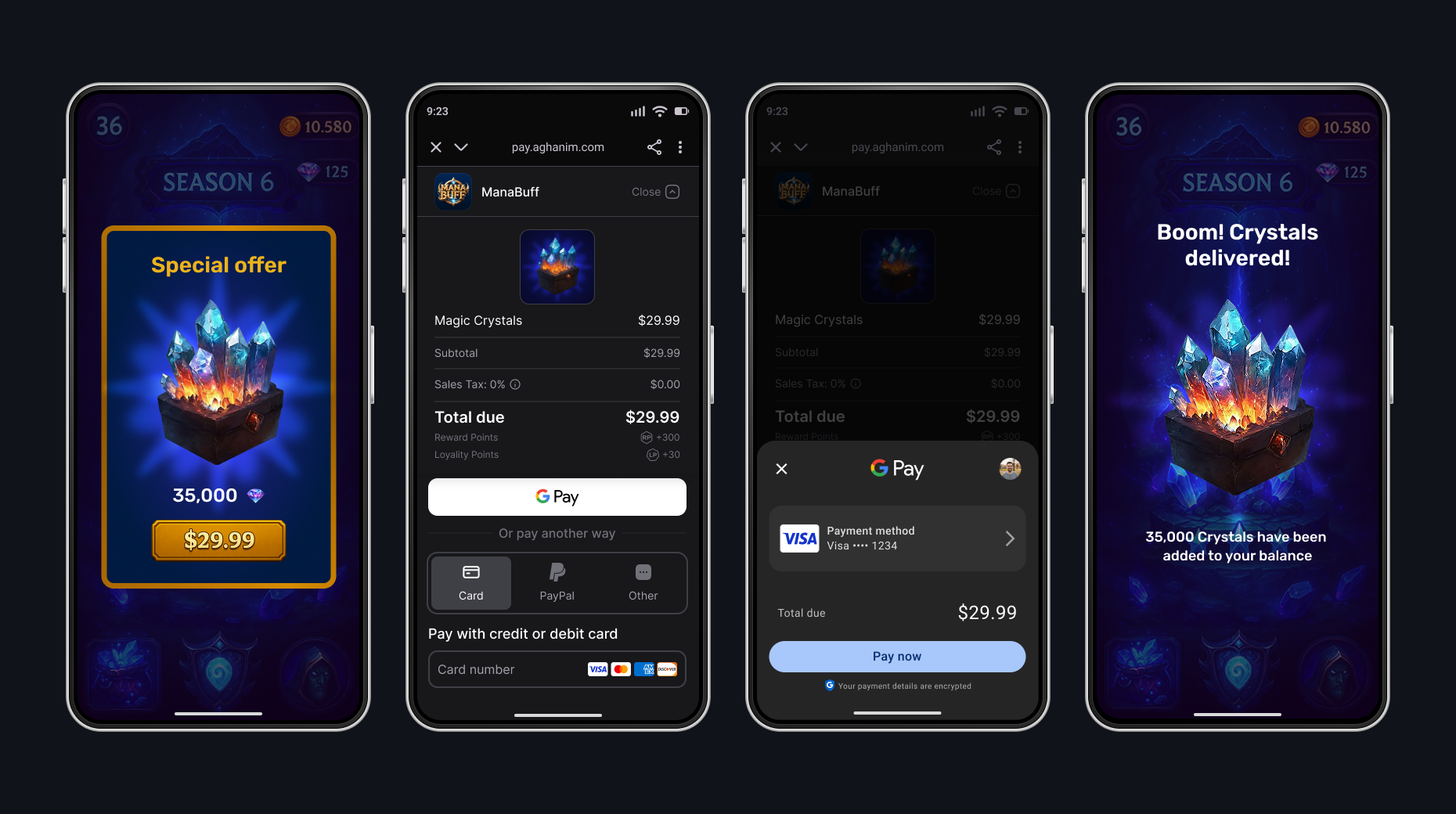
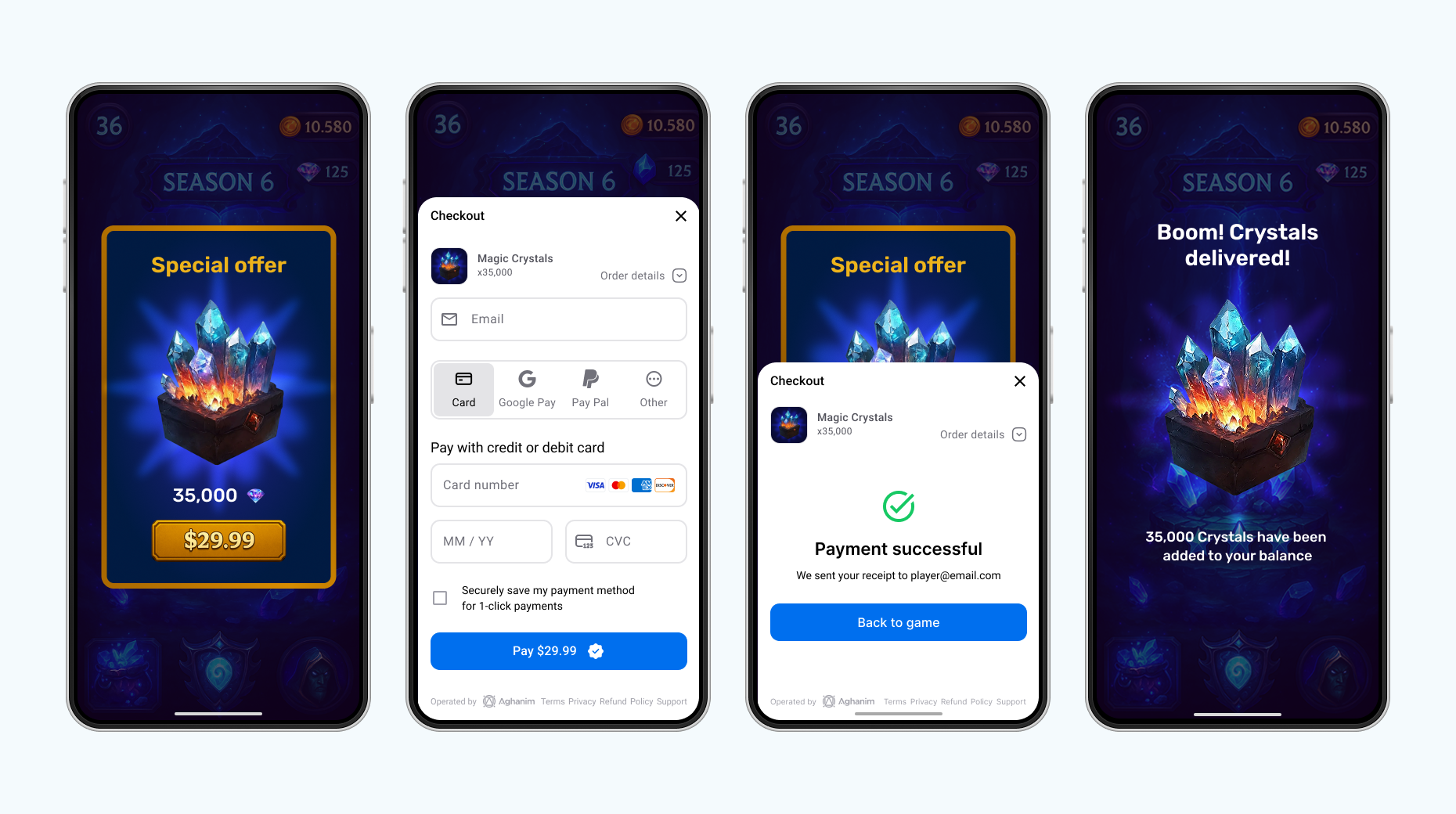
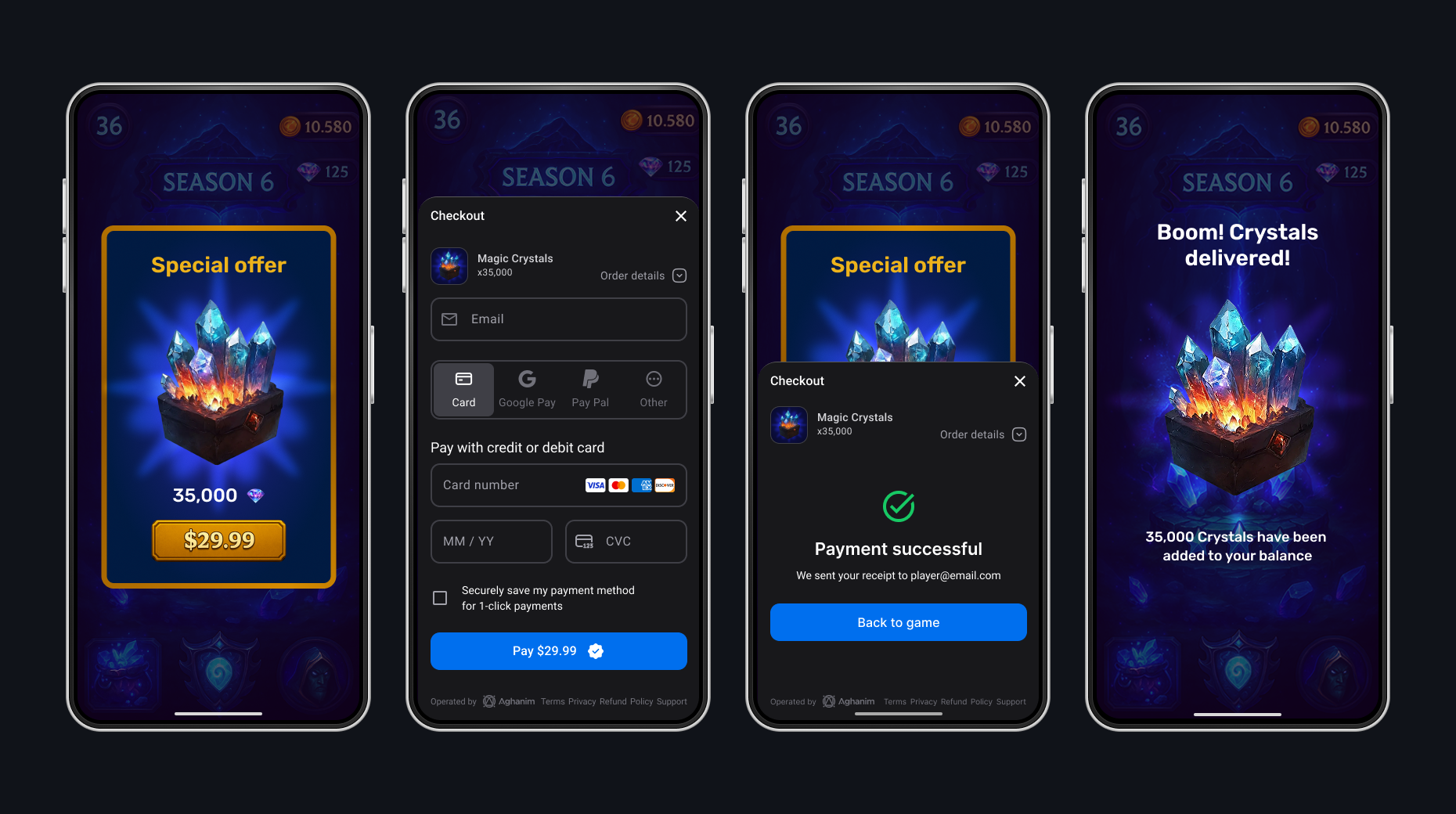
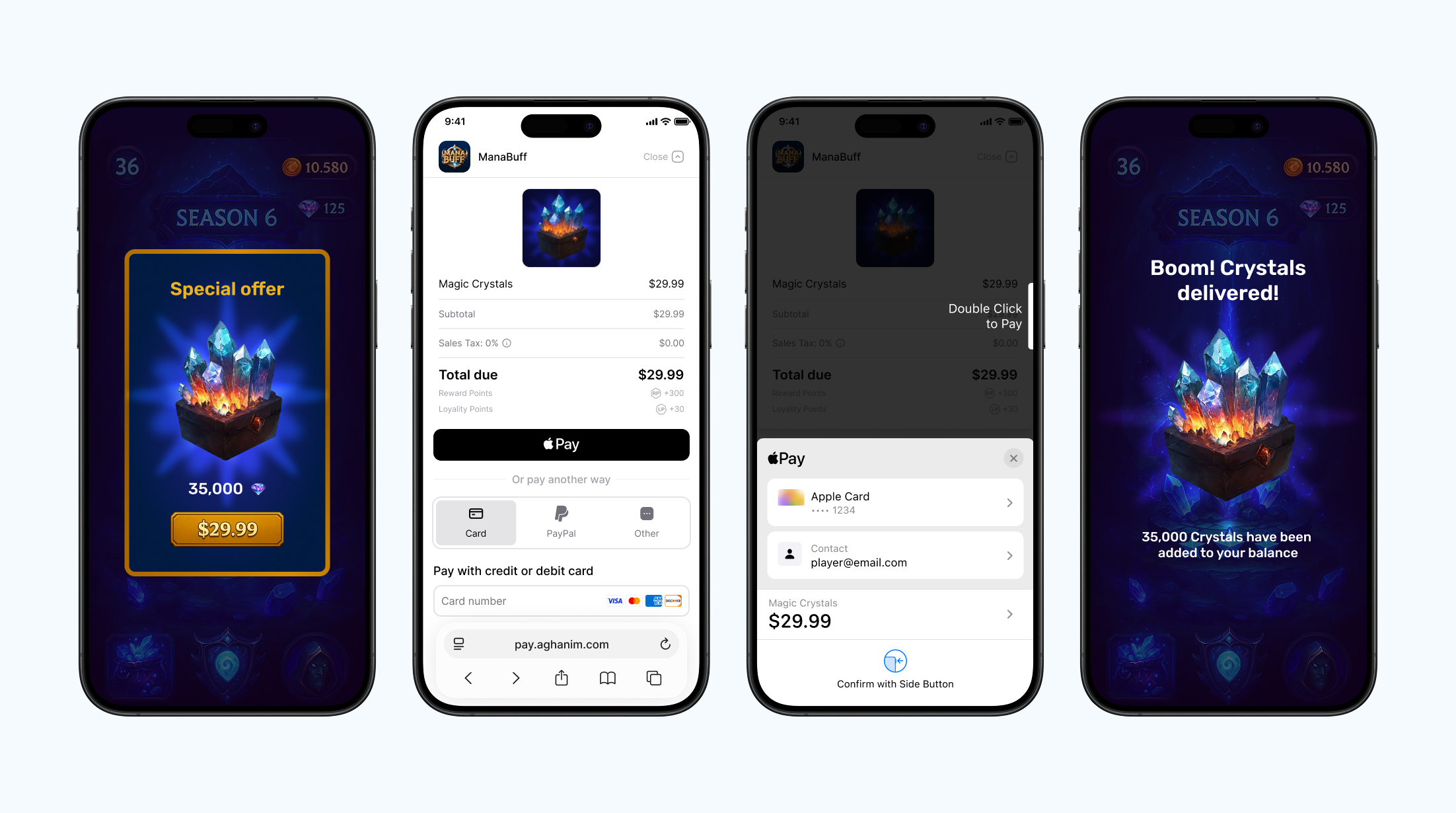
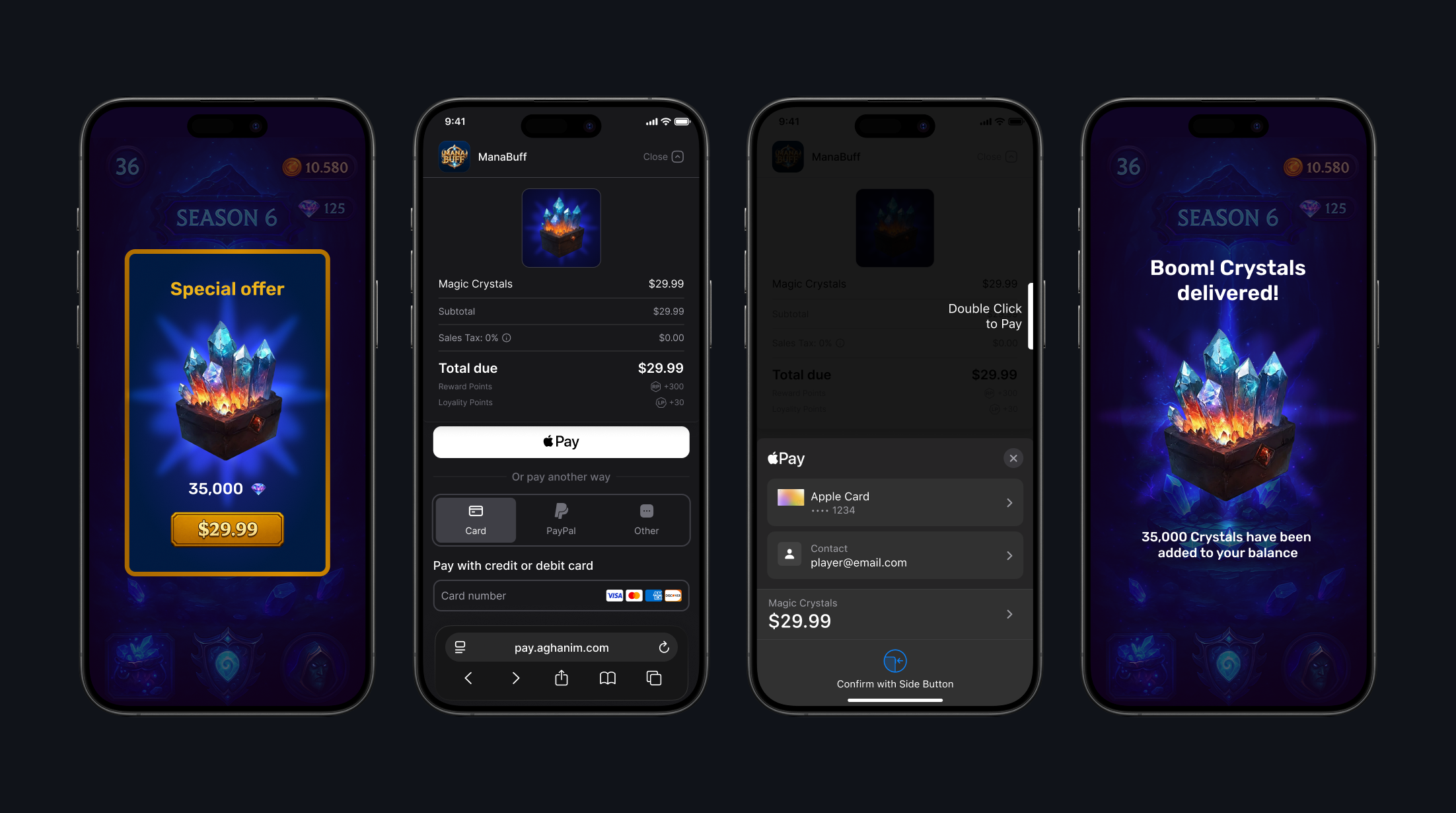
Integration
To integrate the SDK, see its prerequisites and the detailed instruction on Integrate → Unity.
Method reference
The SDK provides direct access to the Aghanim API through the Aghanim entity.
Get Order
To get Order details, use the GetOrder method.
- C#
Aghanim.GetOrder(
    orderId: "order_123",
    onSuccess: (order) => {
        Debug.Log($"Order ID: {order.id}");
        Debug.Log($"Player ID: {order.player_id}");
        Debug.Log($"Total price: {order.price_minor_unit} {order.currency}");
    },
    onError: (error) => {
        Debug.LogError($"Failed to get order: {error}");
    }
);
| Parameter | Type | Required | Description |
|---|---|---|---|
orderId | string | Yes | Unique ID for the Order. |
onSuccess | Action<OrderRead> | Yes if no error | Callback that is invoked on successful result. |
onError | Action<string> | Yes if no success | Callback that is invoked on failed result. |
Get unconsumed Orders
To know what Orders have been paid for but not granted yet, use the GetUnconsumedOrders method.
- C#
Aghanim.GetUnconsumedOrders(
    onSuccess: (response) =>
    {
        // Player has paid but not granted items from orders
        var unconsumedOrderIds = response.Orders;
        // TODO: Save order IDs for further consuming and granting
    },
    onError: (debugMessage) =>
    {
        // Log debug information for troubleshooting
        Debug.LogError($"Failed to get unconsumed orders: {debugMessage}");
        // TODO: Handle error
    }
);
| Parameter | Type | Required | Description |
|---|---|---|---|
onSuccess | Action<UnconsumedOrdersResponse> | Yes if no error | Callback that is invoked on successful result. Use response.Orders to access the array of order IDs. |
onError | Action<string> | Yes if no success | Callback that is invoked on failed result. |
When to use
GetUnconsumedOrders and ConsumeOrder are designed for games without a dedicated server (serverless). They allow you to handle item granting entirely on the client side.
If your game has a server, use the item.add webhook instead — it lets your server control item granting directly. See Handle post-payment events on game server-side in the integration guide.
When to call GetUnconsumedOrders depends on the launch mode you use:
Default browser, In-app browser, Custom per platform with Native UI (Android)
For these modes, subscribe to the standard Unity callbacks OnApplicationFocus and OnApplicationPause — they fire when the player returns to the app after completing the payment:
- C#
private void OnApplicationFocus(bool hasFocus)
{
    if (hasFocus)
    {
        CheckUnconsumedOrders();
    }
}

private void OnApplicationPause(bool isPaused)
{
    if (!isPaused)
    {
        CheckUnconsumedOrders();
    }
}

private void CheckUnconsumedOrders()
{
    Aghanim.GetUnconsumedOrders(
        onSuccess: (response) =>
        {
            foreach (var orderId in response.Orders)
            {
                ConsumeAndGrantOrder(orderId);
            }
        },
        onError: (debugMessage) =>
        {
            Debug.LogError($"Failed to get unconsumed orders: {debugMessage}");
        }
    );
}
In-app browser (iOS)
On iOS, in addition to OnApplicationFocus / OnApplicationPause, the onViewClosed callback fires at the exact moment the player closes the in-app browser:
- C#
var launchMode = new LaunchMode(
    android: AndroidLaunchMode.InAppBrowser(),
    ios: IOSLaunchMode.InAppBrowser(
        onViewClosed: (e) =>
        {
            // Earliest point to check order status on iOS
            CheckUnconsumedOrders();
        }
    )
);
Consume paid Order
To mark a paid Order as handled, use the ConsumeOrder method. Consuming the same Order twice fails, so grant its items once the consume succeeds.
- C#
Aghanim.ConsumeOrder(
    orderId: orderId,
    onSuccess: () =>
    {
        // Paid order is marked as consumed
        Debug.Log($"Order consumed: {orderId}");
        // TODO: Grant items in order to player
    },
    onError: (debugMessage) =>
    {
        // Log debug information for troubleshooting
        Debug.LogError($"Failed to consume order: {debugMessage}");
        // TODO: Handle error
    }
);
| Parameter | Type | Required | Description |
|---|---|---|---|
orderId | string | Yes | Unique ID for the Order. |
onSuccess | Action | Yes if no error | Callback that is invoked on successful result. |
onError | Action<string> | Yes if no success | Callback that is invoked on failed result. |
When to use
Call ConsumeOrder after fetching unconsumed orders to mark them as granted. This prevents the same order from being granted again on the next GetUnconsumedOrders call.
- C#
private void ConsumeAndGrantOrder(string orderId)
{
    Aghanim.ConsumeOrder(
        orderId: orderId,
        onSuccess: () =>
        {
            Debug.Log($"Order consumed: {orderId}");
            // TODO: Grant items to player
        },
        onError: (debugMessage) =>
        {
            Debug.LogError($"Failed to consume order: {debugMessage}");
        }
    );
}
Set player ID
To set the player ID once for the current SDK instance, use the SetPlayerId method. The SDK will use the ID in all following method calls.
- C#
Aghanim.SetPlayerId(playerId);
| Parameter | Type | Required | Description |
|---|---|---|---|
playerId | string | Yes | Unique ID for the player. |
Get items
To retrieve items with localized prices, use the GetItems method. The method returns items created in SKU Management → Items with prices localized based on the player's region.
- C#
Aghanim.GetItems(
    skus: new List<string> { "your-item-sku" },
    onSuccess: (items) =>
    {
        foreach (var item in items)
        {
            // Use item.Name, item.Price.Display, item.ImageUrl to populate your store
            Debug.Log($"{item.Name}: {item.Price.Display}");
        }
    },
    onError: (error) =>
    {
        // Log debug information for troubleshooting
        Debug.LogError($"Failed to get items: {error}");
        // TODO: Handle error
    }
);
| Parameter | Type | Required | Description |
|---|---|---|---|
skus | List<string> | Yes | List of item SKUs to retrieve (max 50). |
locale | Locale | No | Locale for localization. Find the full list of supported locales in Checkout → Locales. |
onSuccess | Action<Item[]> | Yes if no error | Callback that is invoked on successful result. |
onError | Action<string> | Yes if no success | Callback that is invoked on failed result. |
Create Checkout item
To create an item representation, use the CheckoutItem method. The item must already exist in SKU Management → Items, either created there or through the S2S API. Checkout rejects a SKU that is not in the game's catalog, and takes every price from the catalog; the client cannot set or override a price.
- C#
var items = new List<CheckoutItem>
{
    new CheckoutItem("CRS-82500")
};
| Parameter | Type | Required | Description |
|---|---|---|---|
sku | string | Yes | Item SKU from Dashboard. |
name | string | No | Item name from Dashboard. |
description | string | No | Item description from Dashboard. |
imageUrl | string | No | Item image URL from Dashboard. |
Create redirect behavior
To choose the behavior of redirecting the player after they have completed the payment successfully, use the RedirectSettings method.
- Immediate
- Delayed
- No redirect
When the player has completed the payment, the SDK redirects them immediately to the deep link from backToGameUrl.
- C#
var redirectSettings = new RedirectSettings(
    mode: RedirectMode.Immediate
);
When the player has completed the payment, the SDK shows the screen for the successful payment and then redirects the player to the deep link from backToGameUrl.
- C#
var redirectSettings = new RedirectSettings(
    mode: RedirectMode.Delayed,
    delaySeconds: 5
);
When the player has completed the payment, they stay on the screen for the successful payment. To exit it, they manually close it or navigate away. After, you should redirect them to the deep link from backToGameUrl by yourself.
- C#
var redirectSettings = new RedirectSettings(
    mode: RedirectMode.NoRedirect
);
| Parameter | Type | Required | Description |
|---|---|---|---|
mode | RedirectMode | Yes | Redirect mode. Possible values: Immediate, Delayed, NoRedirect. |
delaySeconds | int | Yes if Delayed | Delay in seconds. For Delayed mode, default is 5. |
Create UI settings
To set the appearance mode for the Checkout, use the UiSettings method.
- Auto
- Dark
- Light
The SDK automatically detects and applies the appropriate appearance mode based on the system setting.
- C#
var uiSettings = new UiSettings(
    mode: UiMode.Auto
);
The SDK forces dark mode appearance for the Checkout UI.
- C#
var uiSettings = new UiSettings(
    mode: UiMode.Dark
);
The SDK forces light mode appearance for the Checkout UI.
- C#
var uiSettings = new UiSettings(
    mode: UiMode.Light
);
| Parameter | Type | Required | Description |
|---|---|---|---|
mode | UiMode | Yes | UI mode. Possible values: Auto, Dark, Light. |
Create Checkout params
To create Checkout params, a representation of what the player sees on the payment form, use the CheckoutParams method.
- C#
var checkoutParams = new CheckoutParams(
    items: items,
    backToGameUrl: "https://<YOUR_DOMAIN>/checkout-complete"
);
| Parameter | Type | Required | Description |
|---|---|---|---|
items | List<CheckoutItem> | Yes | List of items. |
metadata | Dictionary<string, string> | No | Metadata structured as “key-value” pairs for tracking purposes. |
locale | string | No | Locale for localization. Find the full list of supported locales in Checkout → Locales. |
backToGameUrl | string | No | Deep link URL to return player to app. |
redirectSettings | RedirectSettings | No | Post-payment redirect behavior. |
uiSettings | UiSettings | No | Checkout appearance settings. |
Use Checkout launch mode
To launch the payment form, use the LaunchMode entity.
- In-app browser
- Default browser
- Custom per platform
For Android and iOS, the In-app browser launch mode creates the seamless players’ experience via Android Custom Tabs and iOS SFSafariViewController.
- C#
LaunchMode.InternalBrowser
For Android and iOS, the Default browser launch mode works in the player default browser. Use the mode when you want to redirect the player outside your app.
- C#
LaunchMode.DefaultBrowser
You can use different launch modes for each platform.
- C#
var launchMode = new LaunchMode(
    android: AndroidLaunchMode.NativeUI(),
    ios: IOSLaunchMode.InAppBrowser()
);
| Parameter | Type | Required | Description |
|---|---|---|---|
android | AndroidLaunchMode | Yes | Launch mode for Android platform. Possible values: NativeUI(), InAppBrowser(), DefaultBrowser(). |
ios | IOSLaunchMode | Yes | Launch mode for iOS platform. Possible values: InAppBrowser(), DefaultBrowser(). |
On iOS, IOSLaunchMode.InAppBrowser() accepts an optional onViewClosed callback. It is invoked when the player closes the SFSafariViewController. You can use it to check the order status and grant items when the player returns to the game.
- C#
var launchMode = new LaunchMode(
    android: AndroidLaunchMode.InAppBrowser(),
    ios: IOSLaunchMode.InAppBrowser(
        onViewClosed: (e) =>
        {
            // The player closed the in-app browser
            // You can check order status and grant items if needed
        }
    )
);
| Parameter | Type | Required | Description |
|---|---|---|---|
onViewClosed | Action<CheckoutViewClosedEvent> | No | Callback invoked when the in-app browser is closed on iOS. |
Start Checkout
To start the Checkout process, use the StartCheckout method. The method creates an order from the provided checkout params and opens the Checkout UI. On success, you receive the Order ID. On failure, you receive an error with debug information.
- In-app browser
- Default browser
- Custom per platform
For Android and iOS, the In-app browser launch mode creates the seamless players’ experience via Android Custom Tabs and iOS SFSafariViewController.
- C#
Aghanim.StartCheckout(
    checkoutParams,
    LaunchMode.InternalBrowser,
    onSuccess: (orderId) =>
    {
        // Order is created and checkout has launched successfully
        // TODO: Save order ID for further granting or tracking
    },
    onError: (error) =>
    {
        // Log debug information for troubleshooting
        Debug.LogError($"Failed to launch Checkout: {error}");
        // TODO: Show user-friendly error message to player
    }
);
For Android and iOS, the Default browser launch mode works in the player default browser. Use the mode when you want to redirect the player outside your app.
- C#
Aghanim.StartCheckout(
    checkoutParams,
    LaunchMode.DefaultBrowser,
    onSuccess: (orderId) =>
    {
        // Order is created and checkout has launched successfully
        // TODO: Save order ID for further granting or tracking
    },
    onError: (error) =>
    {
        // Log debug information for troubleshooting
        Debug.LogError($"Failed to launch Checkout: {error}");
        // TODO: Show user-friendly error message to player
    }
);
You can use different launch modes for each platform.
- C#
Aghanim.StartCheckout(
    checkoutParams,
    launchMode,
    onSuccess: (orderId) =>
    {
        // Order is created and checkout has launched successfully
        // TODO: Save order ID for further granting or tracking
    },
    onError: (error) =>
    {
        // Log debug information for troubleshooting
        Debug.LogError($"Failed to launch Checkout: {error}");
        // TODO: Show user-friendly error message to player
    }
);
| Parameter | Type | Required | Description |
|---|---|---|---|
checkoutParams | CheckoutParams | Yes | Checkout configuration. |
launchMode | LaunchMode | Yes | Launch mode for Checkout. |
onSuccess | Action<string> | Yes | Callback invoked with Order ID on successful Checkout launch. |
onError | Action<string> | Yes | Callback invoked with error message on failed Checkout launch. |
Present Checkout
To present the Checkout UI for an existing order, use the PresentCheckout method. Use this when you have an order ID from server-to-server order creation or when resuming a previously abandoned checkout.
- In-app browser
- Default browser
- Custom per platform
For Android and iOS, the In-app browser launch mode creates the seamless players' experience via Android Custom Tabs and iOS SFSafariViewController.
- C#
Aghanim.PresentCheckout(
    orderId,
    LaunchMode.InternalBrowser,
    onSuccess: (orderId) =>
    {
        // Checkout has launched successfully for the existing order
    },
    onError: (error) =>
    {
        // Log debug information for troubleshooting
        Debug.LogError($"Failed to present Checkout: {error}");
        // TODO: Show user-friendly error message to player
    }
);
For Android and iOS, the Default browser launch mode works in the player default browser. Use the mode when you want to redirect the player outside your app.
- C#
Aghanim.PresentCheckout(
    orderId,
    LaunchMode.DefaultBrowser,
    onSuccess: (orderId) =>
    {
        // Checkout has launched successfully for the existing order
    },
    onError: (error) =>
    {
        // Log debug information for troubleshooting
        Debug.LogError($"Failed to present Checkout: {error}");
        // TODO: Show user-friendly error message to player
    }
);
You can use different launch modes for each platform.
- C#
Aghanim.PresentCheckout(
    orderId,
    launchMode,
    onSuccess: (orderId) =>
    {
        // Checkout has launched successfully for the existing order
    },
    onError: (error) =>
    {
        // Log debug information for troubleshooting
        Debug.LogError($"Failed to present Checkout: {error}");
        // TODO: Show user-friendly error message to player
    }
);
| Parameter | Type | Required | Description |
|---|---|---|---|
orderId | string | Yes | ID of the existing order to open. |
launchMode | LaunchMode | Yes | Launch mode for Checkout. |
onSuccess | Action<string> | Yes | Callback invoked with Order ID on successful Checkout launch. |
onError | Action<string> | Yes | Callback invoked with error message on failed Checkout launch. |
FAQ
Need help?
Contact our integration team at [email protected]